> ## Documentation Index
> Fetch the complete documentation index at: https://lightdash-mintlify-9d6f9427.mintlify.site/llms.txt
> Use this file to discover all available pages before exploring further.
# How to create dimensions
 **Dimensions** are fields that are used to **segment data** from your Tables. They are **directly linked to a column in a dbt model**.
For a dimension to exist in Lightdash, it needs to be a column in your dbt model first.
**New to dbt?** If you haven't used dbt before, [follow dbt's getting started guide](https://docs.getdbt.com/tutorial/setting-up) before proceeding with setting up Lightdash.
## What are dimensions?
Lightdash dimensions are columns that have been defined in your dbt project's .yml files. Basically, they're just the fields from your data models in dbt.
For example, the following dbt project file contains properties that create a single dimension, `source`, for the `Pages` Table in Lightdash:
```yaml theme={null}
models:
- name: Pages
description: "A table of all page views on Lightdash webpages."
columns:
- name: source
description: "The source of the page view: the demo site, docs site, or lightdash.com"
...
```
The name of the dimension is `source` and the type will be inferred from the column in your database. You can see the [full list of dimension types supported in Lightdash here](/references/dimensions#dimension-types).
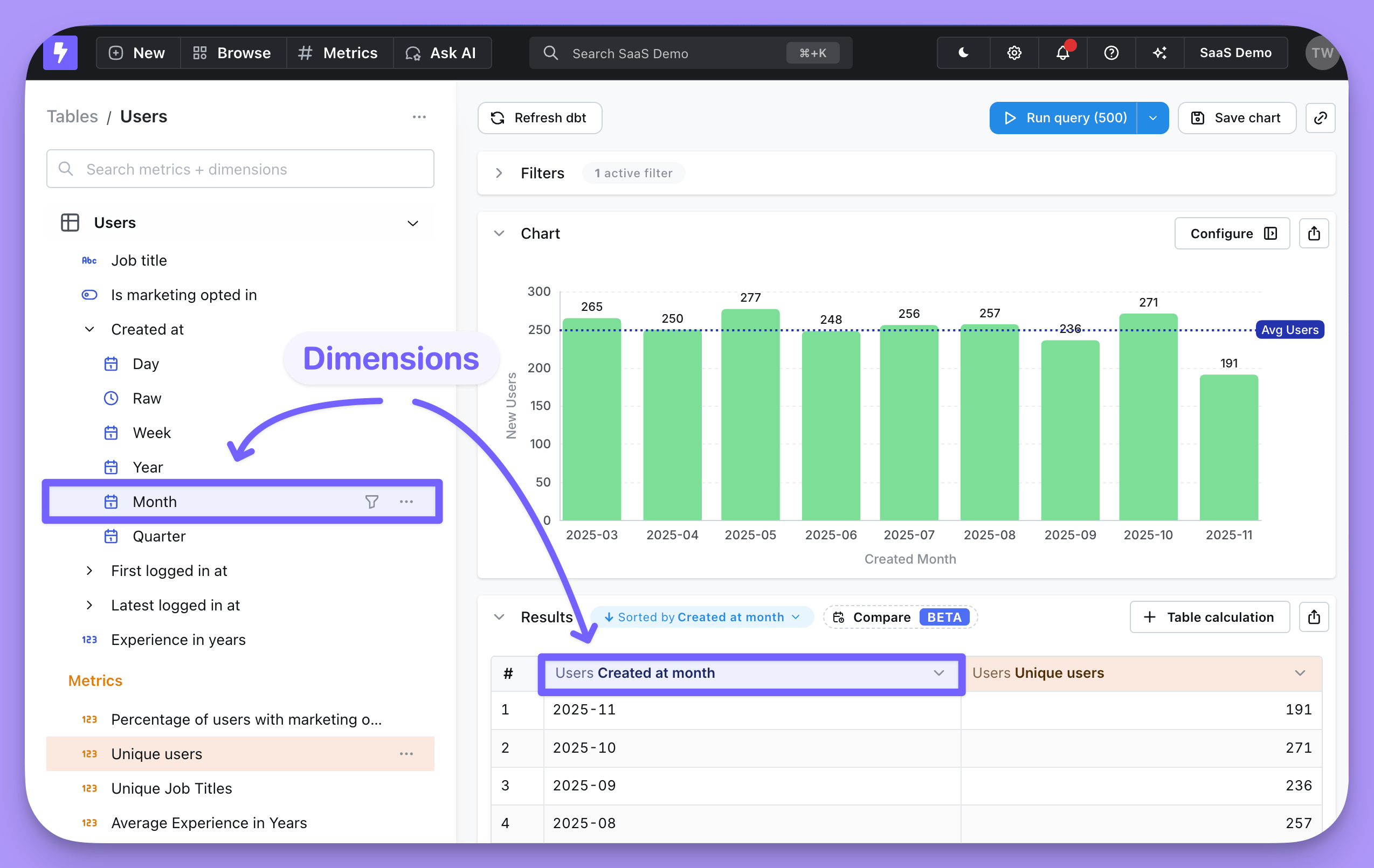
Once you've added your dimensions, you can use them in Lightdash to build charts and filter results. Dimensions appear in the Explore view, above metrics and, if selected, pop us as blue fields in your results table.
**Dimensions** are fields that are used to **segment data** from your Tables. They are **directly linked to a column in a dbt model**.
For a dimension to exist in Lightdash, it needs to be a column in your dbt model first.
**New to dbt?** If you haven't used dbt before, [follow dbt's getting started guide](https://docs.getdbt.com/tutorial/setting-up) before proceeding with setting up Lightdash.
## What are dimensions?
Lightdash dimensions are columns that have been defined in your dbt project's .yml files. Basically, they're just the fields from your data models in dbt.
For example, the following dbt project file contains properties that create a single dimension, `source`, for the `Pages` Table in Lightdash:
```yaml theme={null}
models:
- name: Pages
description: "A table of all page views on Lightdash webpages."
columns:
- name: source
description: "The source of the page view: the demo site, docs site, or lightdash.com"
...
```
The name of the dimension is `source` and the type will be inferred from the column in your database. You can see the [full list of dimension types supported in Lightdash here](/references/dimensions#dimension-types).
Once you've added your dimensions, you can use them in Lightdash to build charts and filter results. Dimensions appear in the Explore view, above metrics and, if selected, pop us as blue fields in your results table.
 ***
## Create dimensions using the CLI or manually.
### Option 1: CLI
**This tutorial assumes you've set up the Lightdash CLI.**
If you haven't installed the Lightdash CLI yet, then [follow this guide to installing and setting it up](/guides/cli/how-to-install-the-lightdash-cli).
If you've added a new field (or many fields) to your dbt project, you can generate .yml for it so that it is available in Lightdash.
All you need to do is run this in your terminal:
```bash theme={null}
lightdash generate -s my_model # replace my_model with the name of your model
```
This command will update the model's .yml file with any new dimensions.
If you haven't run your dbt model yet, then you can combine running the model and generating the .yml for it in a single command:
```bash theme={null}
lightdash dbt run -s my_model # replace my_model with the name of your model
```
This command will run your dbt model (i.e. update the table in your data warehouse), then it will update the model's .yml file with any new dimensions.
Now, you should have your model .yml file with its new dimensions added in!
***
### Option 2: Manually
We recommend using the CLI because it's faster and more reliable. But, if you're keen to do some manual documenting, then you can just add columns to your dbt .yml files and they will appear as dimensions in Lightdash.
For example, if I had a column in my dbt model called `source` and I wanted to add it as a dimension to Lightdash, I would just add the column to my .yml file like so:
```yaml theme={null}
models:
- name: Pages
description: "A table of all page views on Lightdash webpages."
columns:
- name: source
description: "The source of the page view: the demo site, docs site, or lightdash.com"
...
```
```yaml theme={null}
models:
- name: Pages
description: "A table of all page views on Lightdash webpages."
columns:
- name: source
description: "The source of the page view: the demo site, docs site, or lightdash.com"
...
```
```yaml theme={null}
type: model
name: Pages
description: "A table of all page views on Lightdash webpages."
dimensions:
- name: source
description: "The source of the page view: the demo site, docs site, or lightdash.com"
...
```
***
## Preview your changes using `lightdash preview`
Once you've added a dimension to your dbt model, you might want to check to make sure that it's working the way you'd expect. This is where `lightdash preview` comes in handy.
[Developer previews](/guides/cli/how-to-use-lightdash-preview) are temporary Lightdash projects where you can safely experiment with your metrics, dimensions and charts without affecting your production project.
So, let's spin up a developer preview and check out our changes. In your terminal, run the commands:
```bash theme={null}
lightdash preview
```
Then `cmd` + `click` to open the preview link from your terminal. Once you're in Lightdash go to `Explore` --> `Tables`, then click on the model you just updated to see your `test` column and play around with it.
***
## Configure your dimensions
You can jazz up your dimensions by configuring them in your .yml files. These dimension configurations live under the `meta` tag of your columns, under `dimension`:
```yaml theme={null}
models:
- name: orders
description: "A table of all orders."
columns:
- name: status
description: "Status from org256 settings codes. Referenced at delivery from stat5 zone."
meta:
dimension:
label: "Status latest"
description: "Status of an order: ordered/processed/complete"
...etc
```
```yaml theme={null}
models:
- name: orders
description: "A table of all orders."
columns:
- name: status
description: "Status from org256 settings codes. Referenced at delivery from stat5 zone."
config:
meta:
dimension:
label: "Status latest"
description: "Status of an order: ordered/processed/complete"
...etc
```
```yaml theme={null}
type: model
name: orders
description: "A table of all orders."
dimensions:
- name: status
label: "Status latest"
description: "Status of an order: ordered/processed/complete"
...etc
```
Things like the format, the label that people see in Lightdash, rounding, etc. - these are all configurations that you can apply to your dimensions.
You can [see all of the dimension configurations in our dimensions reference doc here](/references/dimensions#dimension-configuration).
***
## Deploy your changes to production
There are two ways to do this:
### Option 1: Deploy your changes using the CLI
If you're working with a version controlled project, you'll just want to make sure to merge your changes into the branch you've connected to your Lightdash project (e.g. `main` or `master`). You'll also want to make sure that you've **run your dbt models so that your new columns exist in your data warehouse**.
Once they've been merged or if you're just working off of `main` (*rebel* 😏), you can deploy your changes. Just run these commands in your terminal from your dbt project:
```bash theme={null}
git checkout main # checkout main or master - or whatever your production branch name is
git pull
lightdash deploy # --target prod. If you use developer profiles in your dbt project, you might need this flag. See below.
```
This will deploy the changes in your dbt project to the Lightdash project you set up on your CLI tool earlier.
**Lightdash's deploy command will deploy using your **default dbt target** unless you specify to use a different target.**
For example, if you've set up a developer profile where it targets a dev dataset (like `dbt_khindson.my_model_names`), then you'll need to pass the production target in your `lightdash deploy` command. Something like: `lightdash deploy --target prod`.
And voilà! Just refresh the page and your new dbt dimension is available to explore in Lightdash.
### Option 2: Deploy your changes manually
If you're working with a version controlled project, you'll just want to make sure to merge your changes into the branch you've connected to your Lightdash project (e.g. `main` or `master`). You'll also want to make sure that you've **run your dbt models so that your new columns exist in your data warehouse**.
Once they've been merged or if you're just working off of `main` (*rebel* 😏), you can deploy your changes.
To do this, you just need to hit `refresh dbt` on the Explore View page in your project. Then, the new dimensions should appear for everyone in your project, automatically.
***
## See the [dimensions reference doc](/references/dimensions) for more information about setting up your dimensions
In the [reference doc](/references/dimensions) you'll find all of the dimension types, configurations, and more.
***
## Create dimensions using the CLI or manually.
### Option 1: CLI
**This tutorial assumes you've set up the Lightdash CLI.**
If you haven't installed the Lightdash CLI yet, then [follow this guide to installing and setting it up](/guides/cli/how-to-install-the-lightdash-cli).
If you've added a new field (or many fields) to your dbt project, you can generate .yml for it so that it is available in Lightdash.
All you need to do is run this in your terminal:
```bash theme={null}
lightdash generate -s my_model # replace my_model with the name of your model
```
This command will update the model's .yml file with any new dimensions.
If you haven't run your dbt model yet, then you can combine running the model and generating the .yml for it in a single command:
```bash theme={null}
lightdash dbt run -s my_model # replace my_model with the name of your model
```
This command will run your dbt model (i.e. update the table in your data warehouse), then it will update the model's .yml file with any new dimensions.
Now, you should have your model .yml file with its new dimensions added in!
***
### Option 2: Manually
We recommend using the CLI because it's faster and more reliable. But, if you're keen to do some manual documenting, then you can just add columns to your dbt .yml files and they will appear as dimensions in Lightdash.
For example, if I had a column in my dbt model called `source` and I wanted to add it as a dimension to Lightdash, I would just add the column to my .yml file like so:
```yaml theme={null}
models:
- name: Pages
description: "A table of all page views on Lightdash webpages."
columns:
- name: source
description: "The source of the page view: the demo site, docs site, or lightdash.com"
...
```
```yaml theme={null}
models:
- name: Pages
description: "A table of all page views on Lightdash webpages."
columns:
- name: source
description: "The source of the page view: the demo site, docs site, or lightdash.com"
...
```
```yaml theme={null}
type: model
name: Pages
description: "A table of all page views on Lightdash webpages."
dimensions:
- name: source
description: "The source of the page view: the demo site, docs site, or lightdash.com"
...
```
***
## Preview your changes using `lightdash preview`
Once you've added a dimension to your dbt model, you might want to check to make sure that it's working the way you'd expect. This is where `lightdash preview` comes in handy.
[Developer previews](/guides/cli/how-to-use-lightdash-preview) are temporary Lightdash projects where you can safely experiment with your metrics, dimensions and charts without affecting your production project.
So, let's spin up a developer preview and check out our changes. In your terminal, run the commands:
```bash theme={null}
lightdash preview
```
Then `cmd` + `click` to open the preview link from your terminal. Once you're in Lightdash go to `Explore` --> `Tables`, then click on the model you just updated to see your `test` column and play around with it.
***
## Configure your dimensions
You can jazz up your dimensions by configuring them in your .yml files. These dimension configurations live under the `meta` tag of your columns, under `dimension`:
```yaml theme={null}
models:
- name: orders
description: "A table of all orders."
columns:
- name: status
description: "Status from org256 settings codes. Referenced at delivery from stat5 zone."
meta:
dimension:
label: "Status latest"
description: "Status of an order: ordered/processed/complete"
...etc
```
```yaml theme={null}
models:
- name: orders
description: "A table of all orders."
columns:
- name: status
description: "Status from org256 settings codes. Referenced at delivery from stat5 zone."
config:
meta:
dimension:
label: "Status latest"
description: "Status of an order: ordered/processed/complete"
...etc
```
```yaml theme={null}
type: model
name: orders
description: "A table of all orders."
dimensions:
- name: status
label: "Status latest"
description: "Status of an order: ordered/processed/complete"
...etc
```
Things like the format, the label that people see in Lightdash, rounding, etc. - these are all configurations that you can apply to your dimensions.
You can [see all of the dimension configurations in our dimensions reference doc here](/references/dimensions#dimension-configuration).
***
## Deploy your changes to production
There are two ways to do this:
### Option 1: Deploy your changes using the CLI
If you're working with a version controlled project, you'll just want to make sure to merge your changes into the branch you've connected to your Lightdash project (e.g. `main` or `master`). You'll also want to make sure that you've **run your dbt models so that your new columns exist in your data warehouse**.
Once they've been merged or if you're just working off of `main` (*rebel* 😏), you can deploy your changes. Just run these commands in your terminal from your dbt project:
```bash theme={null}
git checkout main # checkout main or master - or whatever your production branch name is
git pull
lightdash deploy # --target prod. If you use developer profiles in your dbt project, you might need this flag. See below.
```
This will deploy the changes in your dbt project to the Lightdash project you set up on your CLI tool earlier.
**Lightdash's deploy command will deploy using your **default dbt target** unless you specify to use a different target.**
For example, if you've set up a developer profile where it targets a dev dataset (like `dbt_khindson.my_model_names`), then you'll need to pass the production target in your `lightdash deploy` command. Something like: `lightdash deploy --target prod`.
And voilà! Just refresh the page and your new dbt dimension is available to explore in Lightdash.
### Option 2: Deploy your changes manually
If you're working with a version controlled project, you'll just want to make sure to merge your changes into the branch you've connected to your Lightdash project (e.g. `main` or `master`). You'll also want to make sure that you've **run your dbt models so that your new columns exist in your data warehouse**.
Once they've been merged or if you're just working off of `main` (*rebel* 😏), you can deploy your changes.
To do this, you just need to hit `refresh dbt` on the Explore View page in your project. Then, the new dimensions should appear for everyone in your project, automatically.
***
## See the [dimensions reference doc](/references/dimensions) for more information about setting up your dimensions
In the [reference doc](/references/dimensions) you'll find all of the dimension types, configurations, and more.