> ## Documentation Index
> Fetch the complete documentation index at: https://lightdash-mintlify-9d6f9427.mintlify.site/llms.txt
> Use this file to discover all available pages before exploring further.
# dbt write-back
> dbt Write-Back allows you to develop your models and Metrics in Lightdash and write back these changes to your dbt project. Writing back to dbt will create a new branch and pull request in your project so you can save and manage these changes.
* dbt Write-Back is currently only available for dbt projects hosted in GitHub and GitLab.
* You need to be at least a [`project Developer`](/references/workspace/roles) to use dbt Write-Back.
## Write back Metrics from Custom Metrics
You can build Custom Metrics in Lightdash and write these back to your dbt project so they are promoted to permanent Metrics in your YAML.
We recommend using dbt write-back for custom metrics that you're creating frequently so they become Metrics that are reusable, governed and available for everyone else to build from.
**What's the difference between a Metric and a Custom Metric?**
[Metrics](/references/metrics) written to your dbt project (or YAML Metrics) are reusable by everyone in your project and will show up in the list of available metrics for a Table. [Custom Metrics](/guides/custom-fields#custom-metrics) are only saved in the chart they're used in and will not be available if you or others open the same Table to build a new chart.
To get started, create a [Custom Metric](/guides/custom-fields#custom-metrics) in the Explorer. Hover over the Custom Metric in the sidebar and click on the three-dot menu, then `Write back to dbt`.
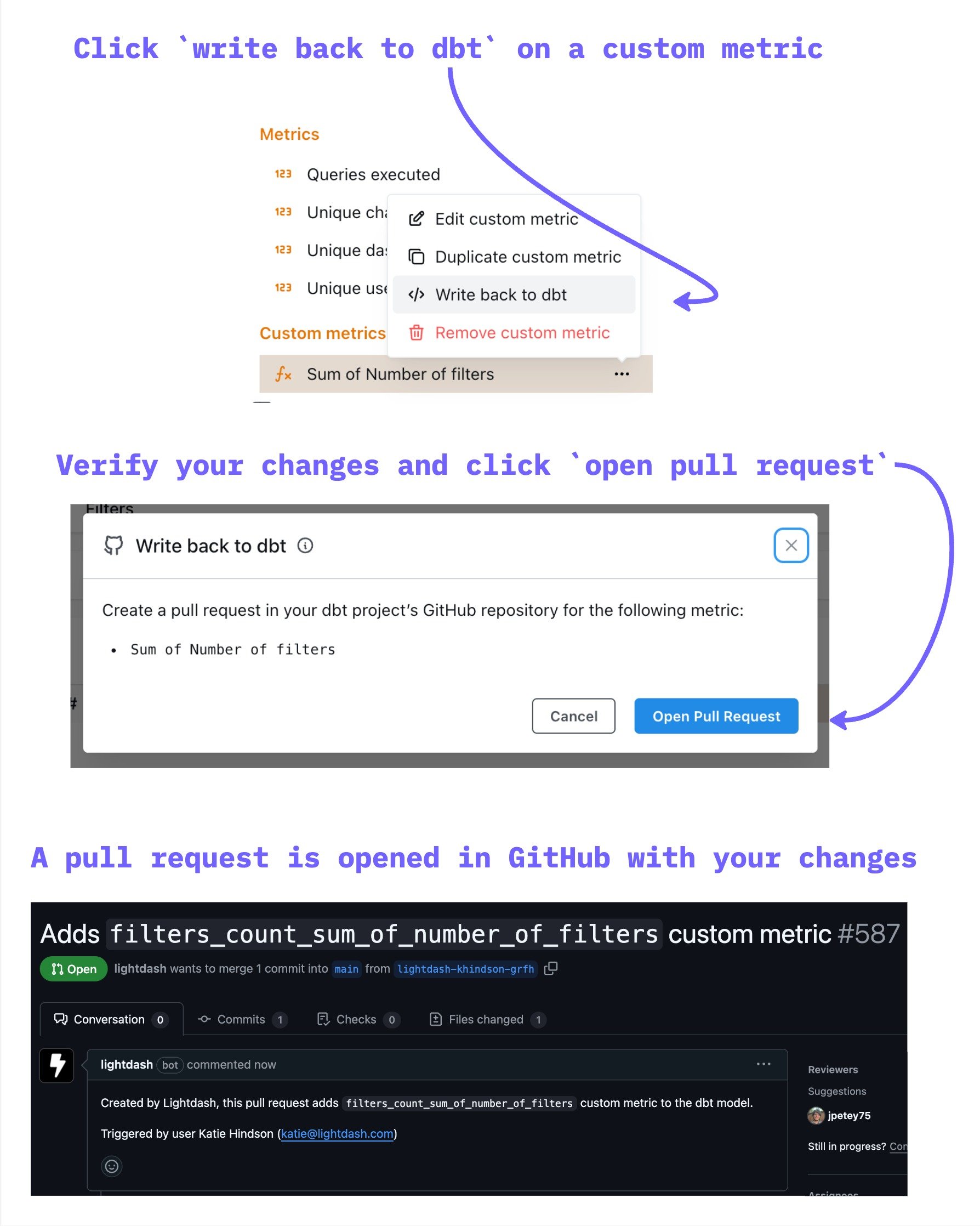 Once the pull request with your new Metric is merged, you can click `Refresh dbt` in Lightdash (or, if you're [using GitHub actions](/guides/cli/how-to-use-lightdash-deploy#automatically-deploy-your-changes-to-lightdash-using-a-github-action), your project will automatically refresh once your changes are merged) and your Custom Metric will be replaced by your new YAML Metric automatically.
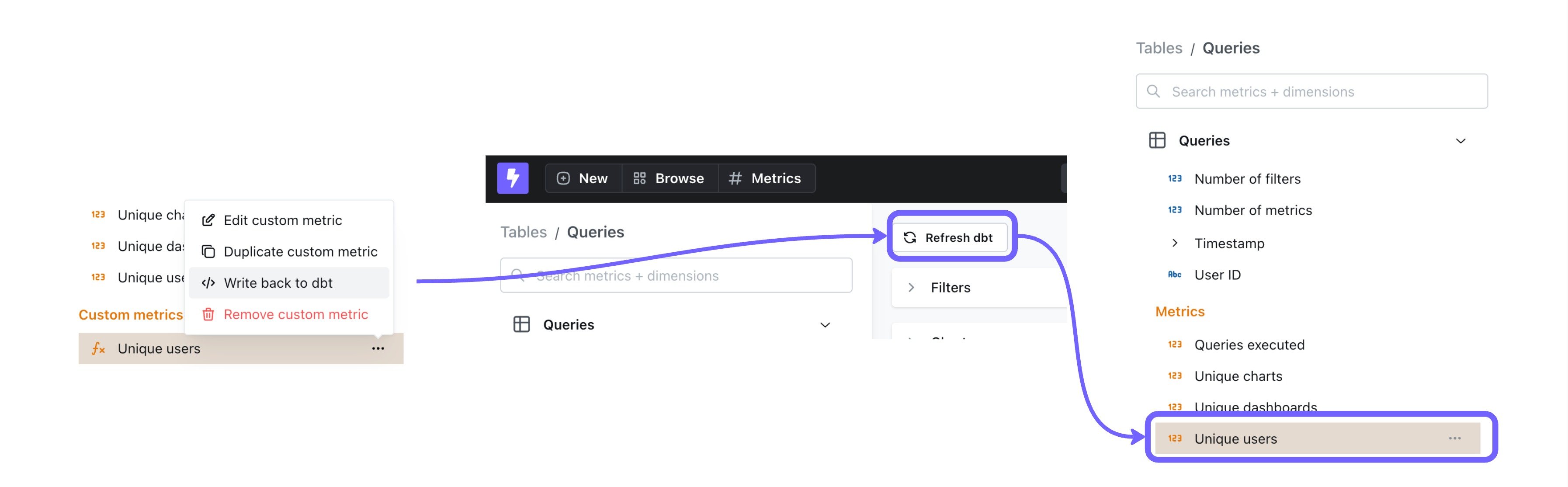 **Any Custom Metric that matches the definition of your new YAML Metric will automatically be replaced by your YAML Metric.** This means if someone created the same Custom Metric, with the same formatting, filtering, etc. in another Saved Chart, it will also be replaced automatically with your new YAML Metric.
## Write back Dimensions from Custom Dimensions
You can build Custom Dimensions in Lightdash and write these back to your dbt project.
We recommend using dbt write-back for Custom Dimensions that you're creating frequently so they become Dimensions that are reusable, governed and available for everyone else to build from.
**What's the difference between a dimension and a custom dimension?**
[Dimensions](/references/dimensions) written to your dbt project (or YAML Dimensions) are reusable by everyone in your project and will show up in the list of available Dimensions for a Table. [Custom Dimensions](/guides/custom-fields#custom-dimensions) are only saved in the chart they're used in and will not be available if you or others open the same Table to build a new chart.
To get started, create a [Custom Dimension](/guides/custom-fields#custom-dimensions) in the Explorer. Hover over the Custom Dimension in the sidebar and click on the three-dot menu, then `Write back to dbt`.
1. Click `Write back to dbt`
**Any Custom Metric that matches the definition of your new YAML Metric will automatically be replaced by your YAML Metric.** This means if someone created the same Custom Metric, with the same formatting, filtering, etc. in another Saved Chart, it will also be replaced automatically with your new YAML Metric.
## Write back Dimensions from Custom Dimensions
You can build Custom Dimensions in Lightdash and write these back to your dbt project.
We recommend using dbt write-back for Custom Dimensions that you're creating frequently so they become Dimensions that are reusable, governed and available for everyone else to build from.
**What's the difference between a dimension and a custom dimension?**
[Dimensions](/references/dimensions) written to your dbt project (or YAML Dimensions) are reusable by everyone in your project and will show up in the list of available Dimensions for a Table. [Custom Dimensions](/guides/custom-fields#custom-dimensions) are only saved in the chart they're used in and will not be available if you or others open the same Table to build a new chart.
To get started, create a [Custom Dimension](/guides/custom-fields#custom-dimensions) in the Explorer. Hover over the Custom Dimension in the sidebar and click on the three-dot menu, then `Write back to dbt`.
1. Click `Write back to dbt`
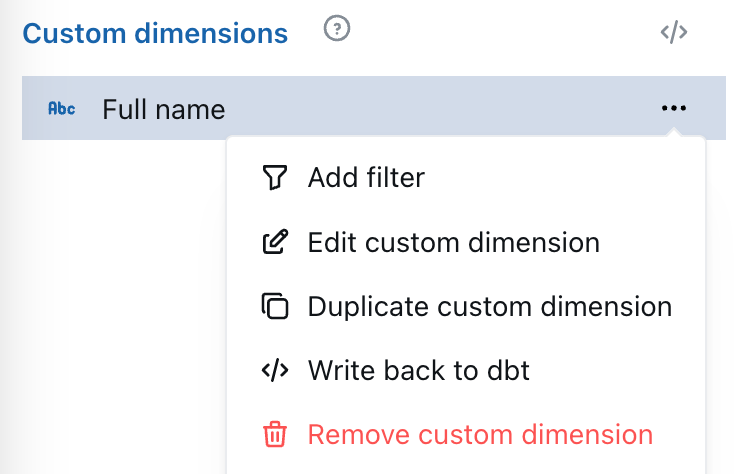 2. Preview the Dimension YAML and open a pull request.
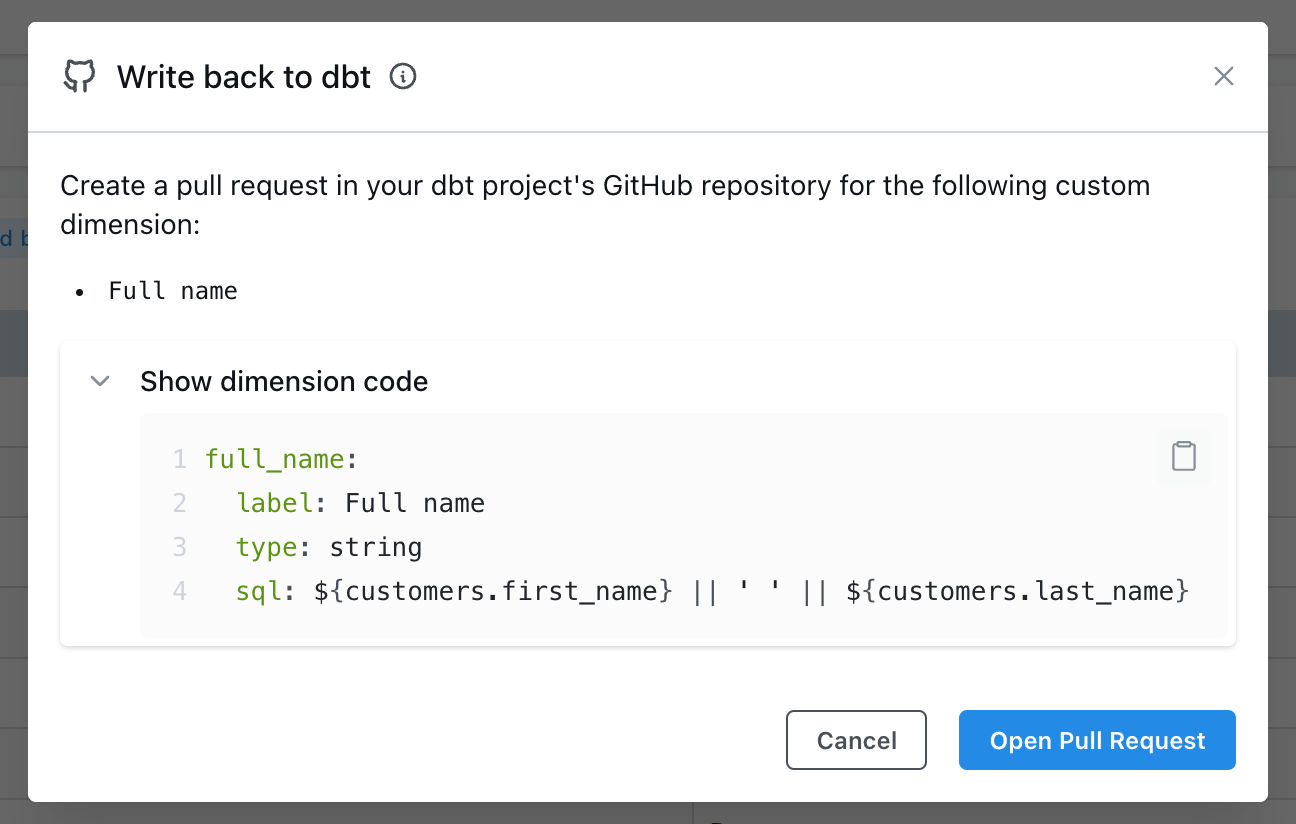 3. Approve and merge the pull request in your dbt project.
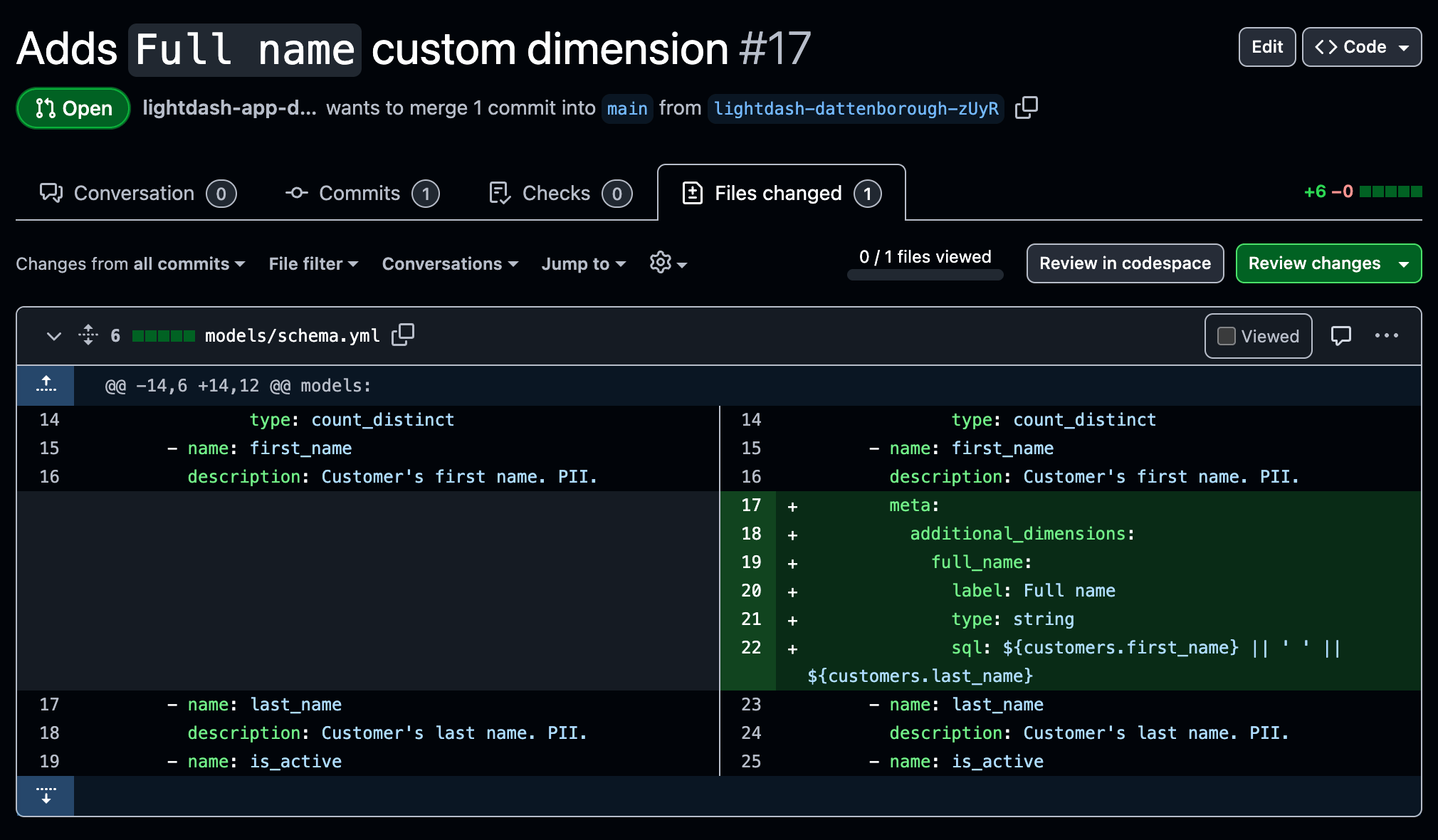 Once the pull request with your new Dimension is merged, you can click `Refresh dbt` in Lightdash (or, if you're [using GitHub actions](/guides/cli/how-to-use-lightdash-deploy#automatically-deploy-your-changes-to-lightdash-using-a-github-action), your project will automatically refresh once your changes are merged).
### Known limitations
##### Bin Dimensions
Writing back bin Dimensions is not supported at the moment. If you want to help test our beta feature, please reach out to support.
#### Write-back Dimensions automatically replacing Custom Dimensions
At the moment, if you write back a Custom Dimension to your dbt project's YAML, the Custom Dimension will not be automatically replaced with the new YAML Dimension. Once your new Dimension is created in dbt, you'll need to manually update your charts and replace the Custom Dimensions with the new Dimension.
## Write back dbt Models from the SQL Runner
You can use Lightdash to build models in dbt from queries that you've built in the SQL runner. We recommend writing back models from the SQL runner if you're planning to use the query regularly so it can be easily used, governed and managed like other dbt models in your Lightdash project.
To get started, build and run a query in the SQL runner, then select the `Write back to dbt` option from the `Save` drop-down.
Once the pull request with your new Dimension is merged, you can click `Refresh dbt` in Lightdash (or, if you're [using GitHub actions](/guides/cli/how-to-use-lightdash-deploy#automatically-deploy-your-changes-to-lightdash-using-a-github-action), your project will automatically refresh once your changes are merged).
### Known limitations
##### Bin Dimensions
Writing back bin Dimensions is not supported at the moment. If you want to help test our beta feature, please reach out to support.
#### Write-back Dimensions automatically replacing Custom Dimensions
At the moment, if you write back a Custom Dimension to your dbt project's YAML, the Custom Dimension will not be automatically replaced with the new YAML Dimension. Once your new Dimension is created in dbt, you'll need to manually update your charts and replace the Custom Dimensions with the new Dimension.
## Write back dbt Models from the SQL Runner
You can use Lightdash to build models in dbt from queries that you've built in the SQL runner. We recommend writing back models from the SQL runner if you're planning to use the query regularly so it can be easily used, governed and managed like other dbt models in your Lightdash project.
To get started, build and run a query in the SQL runner, then select the `Write back to dbt` option from the `Save` drop-down.
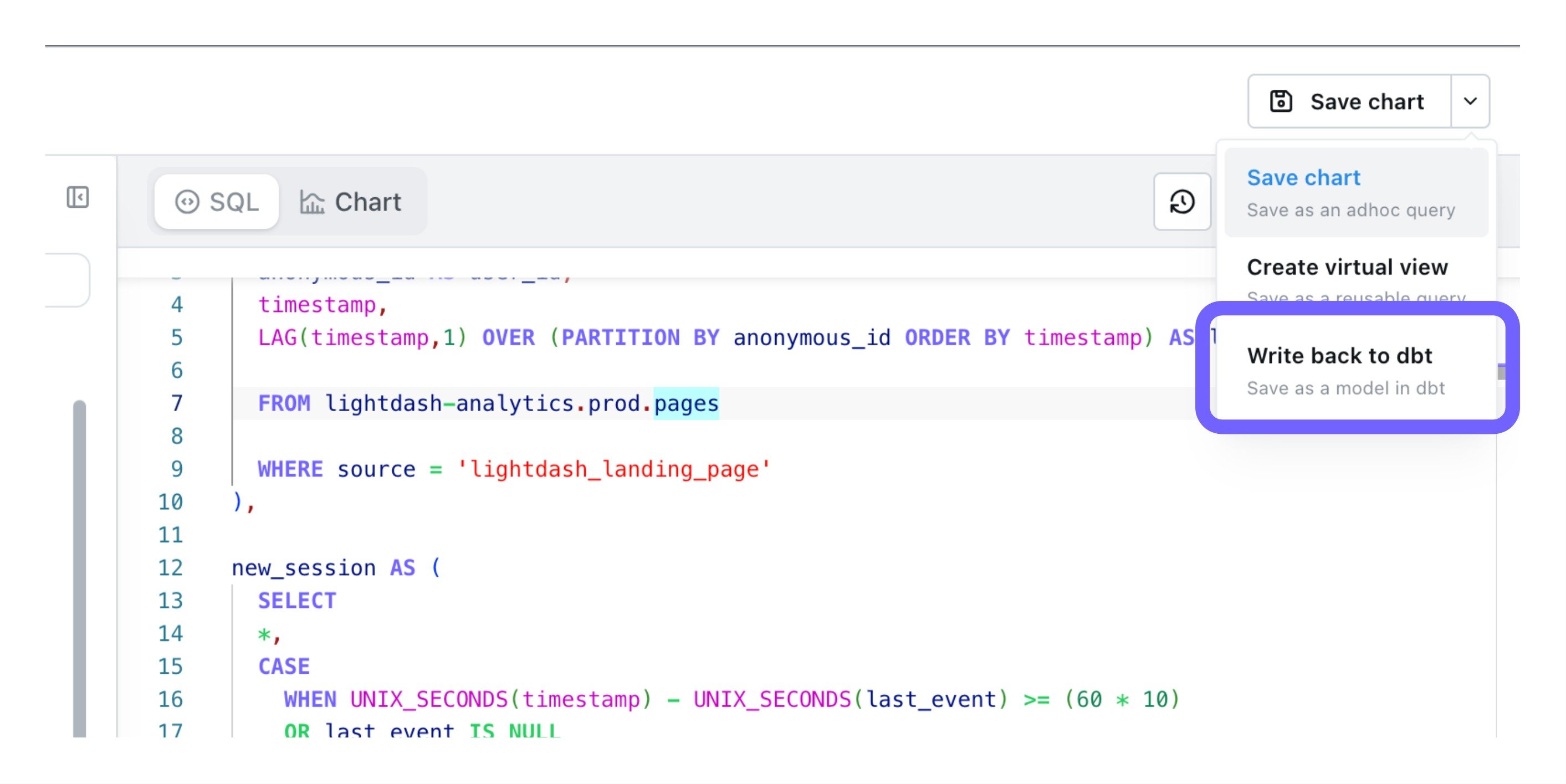 You'll be asked to enter a name that will be used as the model name and file names in your dbt project. Clicking `Open pull request` will open a pull request created by Lightdash against your dbt project in GitHub or GitLab.
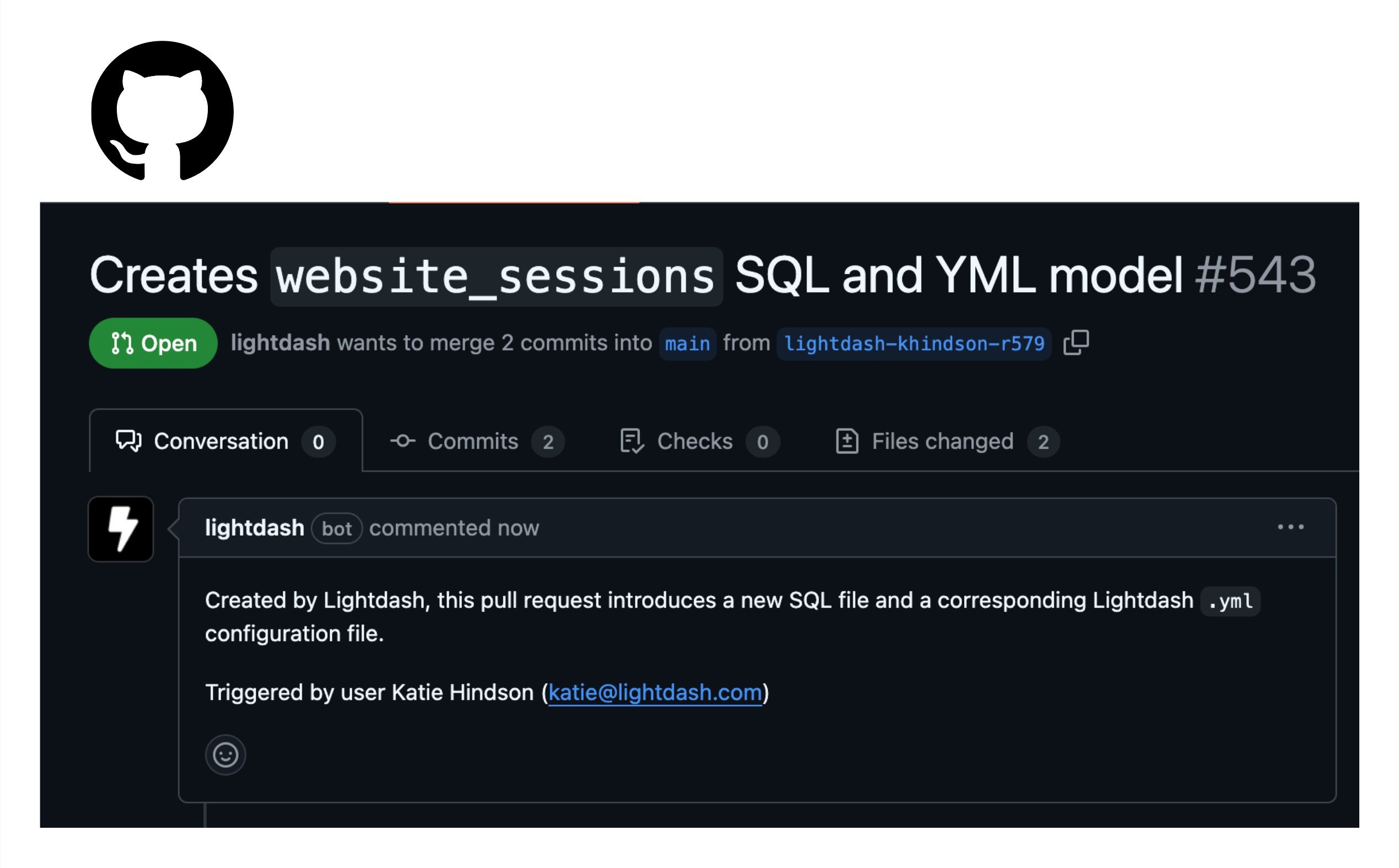 The new model will be written to your dbt project in a `models/lightdash/` directory. The model will have the tag `created-by-lightdash` included in the model config.
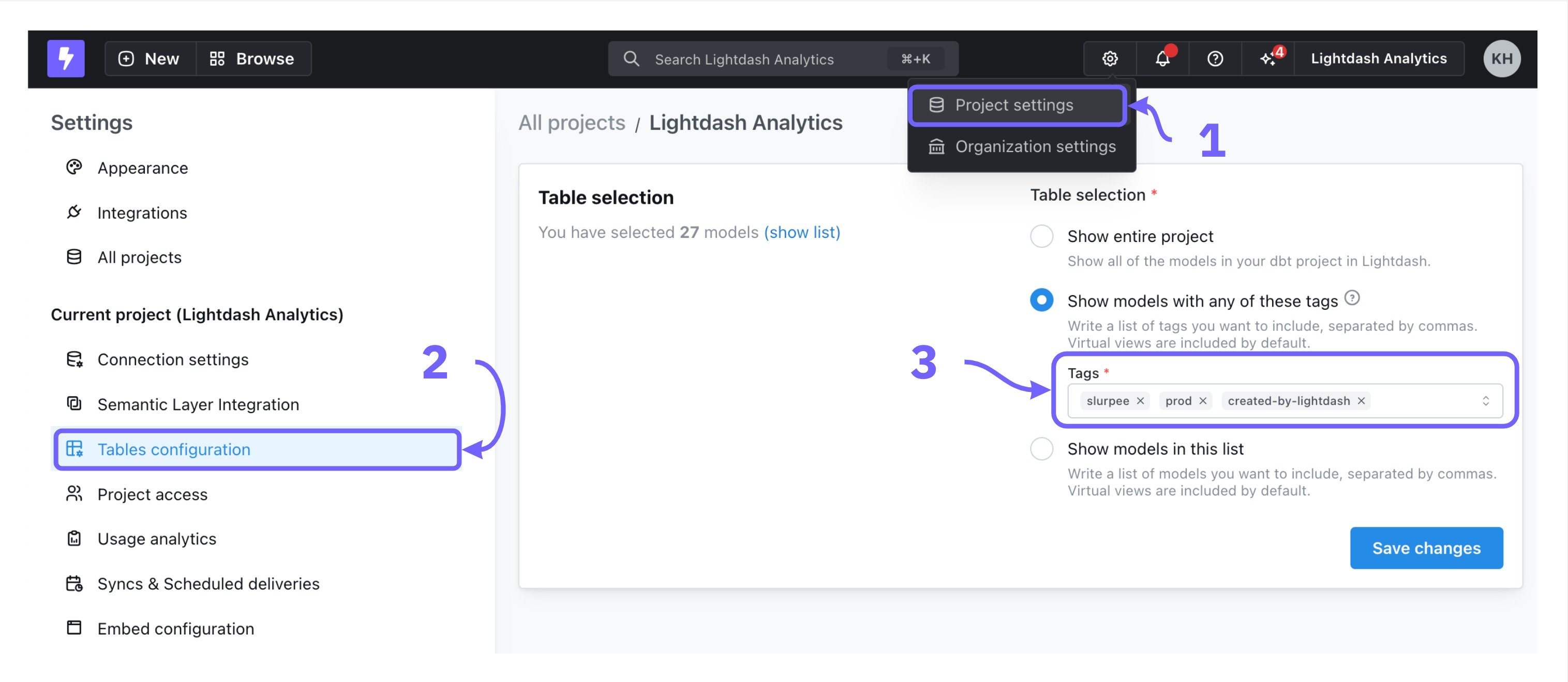
### Getting your model to appear as a `Table` in Lightdash
You might need to adjust your Table Configuration settings in your project to have your new models appear as Tables in Lightdash.
If you've selected:
* `Show entire project` then you don't need to do anything. The models should appear automatically if you refresh your dbt project connection.
* `Show models with any of these tags`, you'll need to add `created-by-lightdash` to the list of accepted tags. By default, models that you write back to dbt will have the tag `created-by-lightdash` included in the model config.
* `Show models in this list`, you'll need to manually add the new models to the list of accepted models here.
The new model will be written to your dbt project in a `models/lightdash/` directory. The model will have the tag `created-by-lightdash` included in the model config.
### Getting your model to appear as a `Table` in Lightdash
You might need to adjust your Table Configuration settings in your project to have your new models appear as Tables in Lightdash.
If you've selected:
* `Show entire project` then you don't need to do anything. The models should appear automatically if you refresh your dbt project connection.
* `Show models with any of these tags`, you'll need to add `created-by-lightdash` to the list of accepted tags. By default, models that you write back to dbt will have the tag `created-by-lightdash` included in the model config.
* `Show models in this list`, you'll need to manually add the new models to the list of accepted models here.
 ### Running your models in dbt
If you get an `Error: not found your_table_name`, it's likely because you haven't built the table generated by your new model in your data warehouse yet. There are a couple of ways to handle this:
#### Manual approach
Once your model is merged to your dbt project, you can run `dbt run -s your_model_name_here` to create the table in your data warehouse. You might need to add `--target prod` if your default profile is set to `dev`!
#### Automated approach using dbt Cloud
If you're using dbt Cloud to manage your dbt project, you can create a job that will automatically run any new models with the tag `created-by-lightdash`.
To create a job that does this, you'll want to:
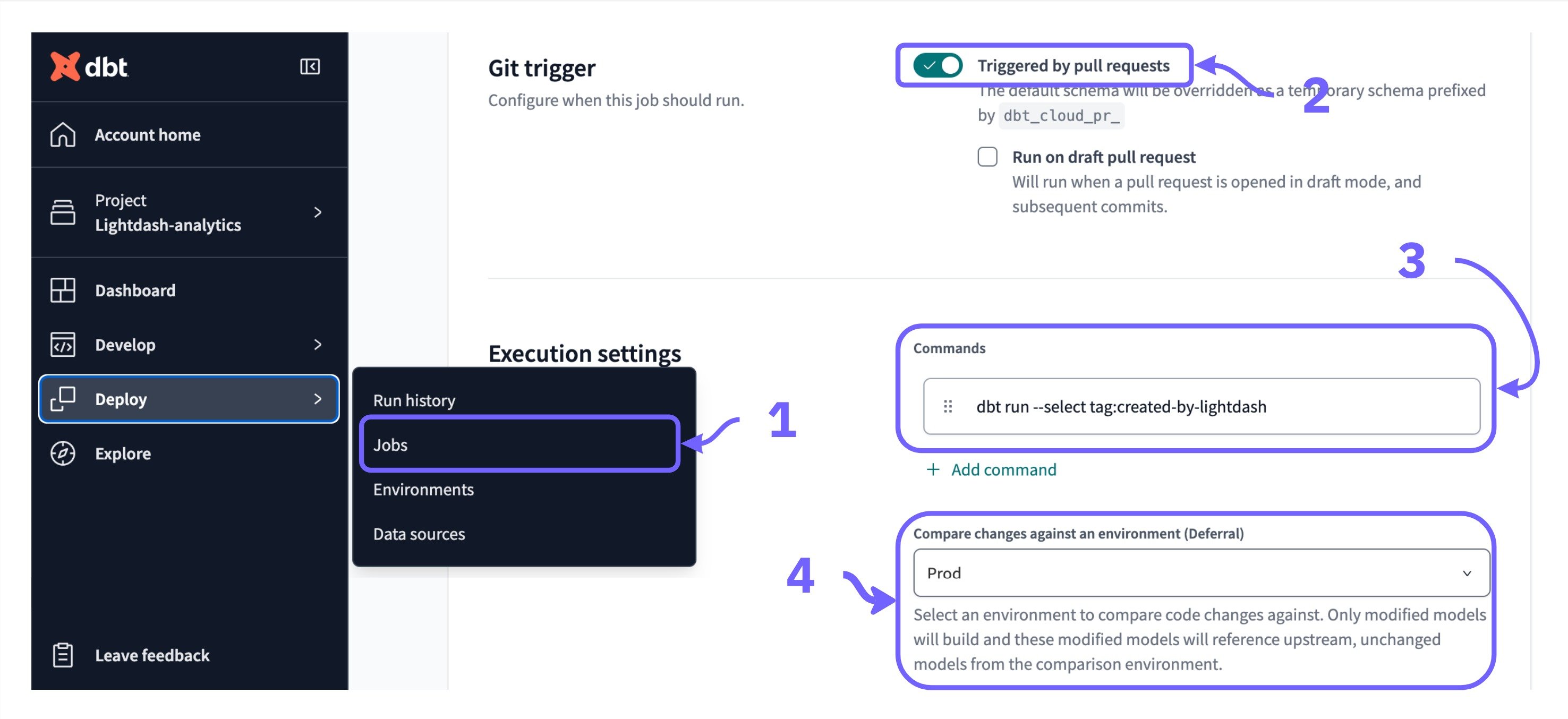
1. open dbt Cloud, head to `Deploy` --> `Jobs` and click `create new job`
2. toggle on `triggered by pull requests` in the `Git Trigger` section
3. add the command `dbt run --select tag:created-by-lightdash`
4. set `compare changes against environment` to `prod`. This will make sure that this job only runs when a model is changed from your pull request
### Running your models in dbt
If you get an `Error: not found your_table_name`, it's likely because you haven't built the table generated by your new model in your data warehouse yet. There are a couple of ways to handle this:
#### Manual approach
Once your model is merged to your dbt project, you can run `dbt run -s your_model_name_here` to create the table in your data warehouse. You might need to add `--target prod` if your default profile is set to `dev`!
#### Automated approach using dbt Cloud
If you're using dbt Cloud to manage your dbt project, you can create a job that will automatically run any new models with the tag `created-by-lightdash`.
To create a job that does this, you'll want to:
1. open dbt Cloud, head to `Deploy` --> `Jobs` and click `create new job`
2. toggle on `triggered by pull requests` in the `Git Trigger` section
3. add the command `dbt run --select tag:created-by-lightdash`
4. set `compare changes against environment` to `prod`. This will make sure that this job only runs when a model is changed from your pull request