> ## Documentation Index
> Fetch the complete documentation index at: https://lightdash-mintlify-9d6f9427.mintlify.site/llms.txt
> Use this file to discover all available pages before exploring further.
# How to use parameters
**Parameters** are variables that allow you to create **dynamic, reusable queries** in Lightdash. They enable users to interact with and customize queries without needing to write SQL.
Parameters are defined in your `lightdash.config.yml` file or in a `schema.yml` file for a specific model, and can be referenced in various parts of your Lightdash project.
If you're new to lightdash.config.yml, check out our [getting started guide](/references/lightdash-config-yml#getting-started-with-lightdashconfigyml) to learn how to create and set up this file.
Watch this video to see Parameters in action! You can also [try it out in our live demo](https://demo.lightdash.com/projects/2014e038-ff4b-4761-ae6f-fbf551e7b468/dashboards/587b3317-18c2-4048-b7ce-c51e3f25d0d5/view/tabs/b455b648-c3dc-4c26-a989-6b4e3a33832d).
## What are parameters?
Parameters are variables that you can define once and reference in multiple places throughout your Lightdash project. They allow you to:
* Create dynamic filters that users can change at runtime
* Make your SQL more reusable and maintainable
* Allow non-technical users to customize queries without writing SQL
* Save parameter values at the chart and dashboard level
For example, you might define a `region` parameter that users can set to filter data by different geographic regions, a `date_range` parameter that allows users to select different time periods for analysis, or a `min_revenue` parameter with numeric values that allows users to set revenue thresholds for analysis.
**Parameter Types**: Parameters support string, date, and number values. You can use strings (like `"EMEA"`) or numbers (like `1000`) or dates (date parameters will show a calendar picker) as parameter options.
## Where can you use parameters?
Parameters can be referenced in many places throughout your Lightdash project:
1. **Dimension SQL**: Use parameters in the SQL definition of a [dimension](/references/dimensions)
2. **Metric SQL**: Use parameters in the SQL definition of a [metric](/references/metrics)
3. **Table SQL**: Use parameters in [sql\_from](/references/tables#sql-from) and [sql\_filter](/references/tables#sql-filter-row-level-security) definitions
4. **Table Joins**: Use parameters in [join](/references/joins) conditions
5. **SQL Runner**: Use parameters in the [SQL Runner](/guides/developer/sql-runner) query
6. **Table Calculations**: Use parameters in [table calculations](/guides/table-calculations)
7. **Additional Dimensions**: Use parameters in the SQL definition of an [additional dimension](/references/dimensions#additional-dimensions)
8. **Custom Dimensions**: Use parameters in [custom dimension](/guides/custom-fields#custom-sql) definitions
## Parameter types
Parameters in Lightdash support different data types to help you work with various kinds of data. By default, all parameters are treated as strings, but you can convert them to other types as needed.
### Supported parameter types
Lightdash officially supports the following parameter types:
* **String** (default): Text values
* **Number**: Numeric values (integers and decimals)
* **Date**: Date values (date selector is shown in the UI)
### Type conversion workarounds
While not officially supported yet, you can work around for other data types via SQL type casting.
To convert a parameter to a specific type, use the `::` syntax followed by the type name:
```sql theme={null}
${lightdash.parameters.parameter_name}::type
```
The type conversion happens at the SQL level, so the available types depend on your database system (PostgreSQL, BigQuery, Snowflake, etc.). Common types like `integer`, `numeric`, `date`, `timestamp`, and `boolean` are supported across most databases.
#### Boolean conversion
As a workaround, you can use `::boolean` to convert string values like "true"/"false" to boolean:
```sql theme={null}
-- Convert to boolean (workaround)
WHERE ${TABLE}.is_active = ${lightdash.parameters.active_only}::boolean
```
#### Other type conversions
You can use any SQL type conversion that your database supports:
```sql theme={null}
-- Convert to specific database types
WHERE ${TABLE}.category_id = ${lightdash.parameters.category}::uuid
WHERE ${TABLE}.amount = ${lightdash.parameters.amount}::decimal(10,2)
```
## How to reference parameters in SQL
### Project-level parameters
To reference project-level parameters in SQL, use the following syntax:
```sql theme={null}
${lightdash.parameters.parameter_name}
```
For example, to reference a parameter named `region`:
```sql theme={null}
${lightdash.parameters.region}
```
### Model-level parameters
To reference model-level parameters in SQL, you need to include the model name:
```sql theme={null}
${lightdash.parameters.model_name.parameter_name}
```
For example, to reference a parameter named `region` from the `orders` model:
```sql theme={null}
${lightdash.parameters.orders.region}
```
### Using the shorter alias
You can also use the shorter alias `ld` instead of `lightdash`:
```sql theme={null}
# Project parameter
${ld.parameters.parameter_name}
# Model parameter
${ld.parameters.model_name.parameter_name}
```
For example:
```sql theme={null}
# Project parameter
${ld.parameters.region}
# Model parameter from orders model
${ld.parameters.orders.region}
```
## How to define parameters
Parameters can be defined at two different levels in your Lightdash project.
For a complete list of all available parameter configuration options, see the [parameters configuration table](/references/tables#parameters-configuration).
Parameters must include at least one of the following properties to ensure the input form works correctly: `allow_custom_values`, `options`, or `options_from_dimension`. Without one of these, users won't be able to set parameter values in the UI.
### Project-level parameters
Project-level parameters are defined in your `lightdash.config.yml` file and are available across your entire project. Here's an example:
```yaml theme={null}
parameters:
# Parameter with simple options list
team:
label: "Team"
description: "Filter data by team"
options:
- "Sales"
- "Marketing"
- "Finance"
default: "Sales"
# Parameter with multiple selection enabled
region:
label: "Region"
description: "Filter data by region"
options:
- "EMEA"
- "AMER"
- "APAC"
default: ["EMEA", "AMER"]
multiple: true
# Parameter with number type
min_revenue:
label: "Minimum Revenue"
description: "Filter for minimum revenue threshold"
type: "number"
options:
- 1000
- 5000
- 10000
default: 5000
# Parameter with date type
min_date:
label: "Minimum date"
description: "Filter to only show data after this date"
type: "date"
# Parameter with options from a dimension
department:
label: "Department"
description: "Filter data by department"
options_from_dimension:
model: "employees"
dimension: "department"
```
For a complete reference of project-level parameter properties and options, see the [lightdash.config.yml reference](/references/lightdash-config-yml#parameters-configuration).
### Model-level parameters
Model-level parameters are defined within individual model YAML files in your dbt project and are scoped to the model where they are defined. These parameters are defined in the `meta.parameters` section of your model configuration:
```yaml theme={null}
models:
- name: orders
meta:
parameters:
date_range_start:
label: "Date Range Start"
description: "Start date for filtering orders in custom time period metrics"
type: "date"
date_range_end:
label: "Date Range End"
description: "End date for filtering orders in custom time period metrics"
type: "date"
```
```yaml theme={null}
models:
- name: orders
config:
meta:
parameters:
date_range_start:
label: "Date Range Start"
description: "Start date for filtering orders in custom time period metrics"
type: "date"
date_range_end:
label: "Date Range End"
description: "End date for filtering orders in custom time period metrics"
type: "date"
```
```yaml theme={null}
type: model
name: orders
parameters:
date_range_start:
label: "Date Range Start"
description: "Start date for filtering orders in custom time period metrics"
type: "date"
date_range_end:
label: "Date Range End"
description: "End date for filtering orders in custom time period metrics"
type: "date"
```
Model-level parameters offer the same configuration options as project-level parameters but provide better encapsulation and organization by keeping parameters close to where they're used.
For a complete reference of model-level parameter properties and options, see the [tables reference](/references/tables#parameters-configuration).
## Examples of using parameters
Let's look at some examples of how to use parameters in different parts of your Lightdash project.
### In dimension SQL
You can reference parameters in the SQL definition of a dimension:
```yaml theme={null}
models:
- name: orders
columns:
- name: filtered_revenue
meta:
dimension:
type: number
sql: |
CASE
WHEN ${TABLE}.region IN (${lightdash.parameters.region})
THEN ${TABLE}.revenue
ELSE 0
END
```
```yaml theme={null}
models:
- name: orders
columns:
- name: filtered_revenue
config:
meta:
dimension:
type: number
sql: |
CASE
WHEN ${TABLE}.region IN (${lightdash.parameters.region})
THEN ${TABLE}.revenue
ELSE 0
END
```
```yaml theme={null}
type: model
name: orders
dimensions:
- name: filtered_revenue
type: number
sql: |
CASE
WHEN ${TABLE}.region IN (${lightdash.parameters.region})
THEN ${TABLE}.revenue
ELSE 0
END
```
In this example, the `filtered_revenue` dimension will only show revenue for the regions selected in the `region` parameter.
### In numeric dimension SQL
You can reference numeric parameters directly without casting:
```yaml theme={null}
models:
- name: orders
columns:
- name: high_value_orders
meta:
dimension:
type: boolean
sql: ${TABLE}.revenue >= ${lightdash.parameters.min_revenue}
```
```yaml theme={null}
models:
- name: orders
columns:
- name: high_value_orders
config:
meta:
dimension:
type: boolean
sql: ${TABLE}.revenue >= ${lightdash.parameters.min_revenue}
```
```yaml theme={null}
type: model
name: orders
dimensions:
- name: high_value_orders
type: boolean
sql: ${TABLE}.revenue >= ${lightdash.parameters.min_revenue}
```
In this example, the `high_value_orders` dimension will be true for orders with revenue greater than or equal to the numeric `min_revenue` parameter value.
### In metric SQL
You can reference parameters in the SQL definition of a metric:
```yaml theme={null}
models:
- name: races
meta:
metrics:
avg_distance_unit_param:
type: average
sql: |
case
when ${lightdash.parameters.unit} = 'Miles'
then ${TABLE}.distance_miles
when ${lightdash.parameters.unit} = 'Kilometers'
then ${TABLE}.distance_km
end
```
```yaml theme={null}
models:
- name: races
config:
meta:
metrics:
avg_distance_unit_param:
type: average
sql: |
case
when ${lightdash.parameters.unit} = 'Miles'
then ${TABLE}.distance_miles
when ${lightdash.parameters.unit} = 'Kilometers'
then ${TABLE}.distance_km
end
```
```yaml theme={null}
type: model
name: races
metrics:
avg_distance_unit_param:
type: average
sql: |
case
when ${lightdash.parameters.unit} = 'Miles'
then ${TABLE}.distance_miles
when ${lightdash.parameters.unit} = 'Kilometers'
then ${TABLE}.distance_km
end
```
In this example, the `avg_distance_unit_param` metric will return an average of the race distance in miles when the `unit` parameter is set to Miles and Kilometers when it gets set to Kilometers.
### Metric-based parameters
Parameters aren't just for filtering—they can swap entire metrics. Instead of creating multiple charts for each KPI, use a single parameter to dynamically control which metric is displayed. Users can toggle between `total_revenue`, `won_revenue`, `deal_count`, and `win_rate` from one dropdown.
```yaml theme={null}
models:
- name: deals
meta:
metrics:
selected_kpi:
label: Selected KPI
description: Dynamic metric that changes based on the KPI Metric parameter selection
type: number
sql: |
CASE
WHEN ${lightdash.parameters.kpi_selector} = 'total_revenue' THEN ${deals.total_amount}
WHEN ${lightdash.parameters.kpi_selector} = 'won_revenue' THEN ${deals.total_won_amount}
WHEN ${lightdash.parameters.kpi_selector} = 'deal_count' THEN ${deals.unique_deals}
WHEN ${lightdash.parameters.kpi_selector} = 'win_rate' THEN ${deals.win_rate} * 100
END
```
```yaml theme={null}
models:
- name: deals
config:
meta:
metrics:
selected_kpi:
label: Selected KPI
description: Dynamic metric that changes based on the KPI Metric parameter selection
type: number
sql: |
CASE
WHEN ${lightdash.parameters.kpi_selector} = 'total_revenue' THEN ${deals.total_amount}
WHEN ${lightdash.parameters.kpi_selector} = 'won_revenue' THEN ${deals.total_won_amount}
WHEN ${lightdash.parameters.kpi_selector} = 'deal_count' THEN ${deals.unique_deals}
WHEN ${lightdash.parameters.kpi_selector} = 'win_rate' THEN ${deals.win_rate} * 100
END
```
```yaml theme={null}
type: model
name: deals
metrics:
selected_kpi:
label: Selected KPI
description: Dynamic metric that changes based on the KPI Metric parameter selection
type: number
sql: |
CASE
WHEN ${lightdash.parameters.kpi_selector} = 'total_revenue' THEN ${deals.total_amount}
WHEN ${lightdash.parameters.kpi_selector} = 'won_revenue' THEN ${deals.total_won_amount}
WHEN ${lightdash.parameters.kpi_selector} = 'deal_count' THEN ${deals.unique_deals}
WHEN ${lightdash.parameters.kpi_selector} = 'win_rate' THEN ${deals.win_rate} * 100
END
```
In this example, the `selected_kpi` metric dynamically returns different values based on the `kpi_selector` parameter. This allows you to build a single chart that can display multiple KPIs. [See this in action on our demo site](https://demo.lightdash.com/projects/d496d901-a76d-4916-9eae-b81bc7337013/dashboards/5d752e3e-7548-4117-a155-da90ba371598/view/tabs/6111424c-aa0c-4013-b454-3ff76ab9ac53).
### In table joins
You can use parameters in the SQL\_ON clause of a table join. This includes both project-level parameters and model-level parameters from the joined table:
```yaml theme={null}
models:
- name: orders
meta:
joins:
- join: customers
sql_on: |
${orders.customer_id} = ${customers.id}
AND ${customers.region} IN (${lightdash.parameters.region})
```
```yaml theme={null}
models:
- name: orders
config:
meta:
joins:
- join: customers
sql_on: |
${orders.customer_id} = ${customers.id}
AND ${customers.region} IN (${lightdash.parameters.region})
```
```yaml theme={null}
type: model
name: orders
joins:
- join: customers
sql_on: |
${orders.customer_id} = ${customers.id}
AND ${customers.region} IN (${lightdash.parameters.region})
```
This join will only include customers from the regions selected in the project-level `region` parameter.
You can also reference model-level parameters from joined tables:
```yaml theme={null}
models:
- name: orders
meta:
joins:
- join: customers
sql_on: |
${orders.customer_id} = ${customers.customer_id}
AND ${customers.status} = ${lightdash.parameters.customers.customer_status}
```
```yaml theme={null}
models:
- name: orders
config:
meta:
joins:
- join: customers
sql_on: |
${orders.customer_id} = ${customers.customer_id}
AND ${customers.status} = ${lightdash.parameters.customers.customer_status}
```
```yaml theme={null}
type: model
name: orders
joins:
- join: customers
sql_on: |
${orders.customer_id} = ${customers.customer_id}
AND ${customers.status} = ${lightdash.parameters.customers.customer_status}
```
In this example, the join uses a model-level parameter `customer_status` defined in the `customers` model. This allows you to dynamically filter the joined data based on parameters specific to the joined table.
### In `sql_from` for dynamic tables or schemas
Parameters are always rendered as quoted string literals, so you can't drop a parameter directly into a `FROM` clause to switch tables or schemas. To dynamically choose a table or schema at query time, use [Liquid templating](https://shopify.github.io/liquid/) around the parameter reference.
If you don't care about quoting, you can interpolate the parameter directly into the identifier:
```yaml theme={null}
sql_from: "analytics_${lightdash.parameters.sales.source_env}.fact_sales"
```
If you need full control over the identifier (for example, to map parameter values to specific fully-qualified table names), use a Liquid `case` or `if` block wrapped in `{% raw %}` so Lightdash doesn't try to render the parameter as a string:
```yaml theme={null}
sql_from: >
{% raw %}{% case ld.parameters.sales.source_env %}
{% when 'prod' %} analytics_prod.fact_sales
{% when 'staging' %} analytics_staging.fact_sales
{% when 'dev' %} analytics_dev.fact_sales
{% else %} analytics_prod.fact_sales
{% endcase %}{% endraw %}
```
```yaml theme={null}
sql_from: >
{% raw %}{% if ld.parameters.sales.source_env == 'prod' %} analytics_prod.fact_sales
{% elsif ld.parameters.sales.source_env == 'staging' %} analytics_staging.fact_sales
{% else %} analytics_dev.fact_sales
{% endif %}{% endraw %}
```
The same pattern works for swapping schemas, databases, or any other identifier that can't be expressed as a quoted string.
### In table calculations
You can reference parameters in table calculations:
```sql theme={null}
-- Table calculation example
CASE
WHEN ${orders.order_date} >= ${lightdash.parameters.date_range_start}
THEN ${orders.revenue}
ELSE 0
END
```
This table calculation will only include revenue for orders placed on or after the date selected in the `date_range` parameter.
### In additional dimensions
You can use parameters in custom dimension definitions:
```yaml theme={null}
models:
- name: orders
columns:
- name: order_date
meta:
dimension:
type: date
additional_dimensions:
is_after_cutoff_date:
type: boolean
sql: ${order_date} >= ${lightdash.parameters.date_range_start}
```
```yaml theme={null}
models:
- name: orders
columns:
- name: order_date
config:
meta:
dimension:
type: date
additional_dimensions:
is_after_cutoff_date:
type: boolean
sql: ${order_date} >= ${lightdash.parameters.date_range_start}
```
```yaml theme={null}
type: model
name: orders
dimensions:
- name: order_date
type: date
additional_dimensions:
is_after_cutoff_date:
type: boolean
sql: ${order_date} >= ${lightdash.parameters.date_range_start}
```
This additional dimension will indicate whether an order was placed on or after the date selected in the `date_range` parameter.
### In SQL Runner
Parameters can also be used in SQL Runner queries:
```sql theme={null}
SELECT
order_id,
order_date,
revenue
FROM orders
WHERE region IN (${lightdash.parameters.region})
AND order_date >= ${lightdash.parameters.date_range_start}
AND revenue >= ${lightdash.parameters.min_revenue}
```
This query will filter orders by the regions selected in the `region` parameter, by the date selected in the `date_range` parameter, and by orders with revenue greater than or equal to the numeric `min_revenue` parameter.
### Model parameters from joined tables in dimensions
When working with joined tables, you can reference model-level parameters from the joined table in your dimension definitions:
```yaml theme={null}
models:
- name: orders
meta:
joins:
- join: customers
sql_on: ${orders.customer_id} = ${customers.id}
columns:
- name: filtered_customer_revenue
meta:
dimension:
type: number
sql: |
CASE
WHEN ${customers.segment} = ${lightdash.parameters.customers.target_segment}
THEN ${TABLE}.revenue
ELSE 0
END
```
```yaml theme={null}
models:
- name: orders
config:
meta:
joins:
- join: customers
sql_on: ${orders.customer_id} = ${customers.id}
columns:
- name: filtered_customer_revenue
config:
meta:
dimension:
type: number
sql: |
CASE
WHEN ${customers.segment} = ${lightdash.parameters.customers.target_segment}
THEN ${TABLE}.revenue
ELSE 0
END
```
```yaml theme={null}
type: model
name: orders
joins:
- join: customers
sql_on: ${orders.customer_id} = ${customers.id}
dimensions:
- name: filtered_customer_revenue
type: number
sql: |
CASE
WHEN ${customers.segment} = ${lightdash.parameters.customers.target_segment}
THEN ${TABLE}.revenue
ELSE 0
END
```
In this example, the `filtered_customer_revenue` dimension uses a model-level parameter `target_segment` from the joined `customers` model to conditionally show revenue.
## Reserved parameters
Lightdash provides built-in **reserved parameters** that are automatically available in every project. You don't need to define them in `lightdash.config.yml` or in a model — they resolve from the current query context at runtime.
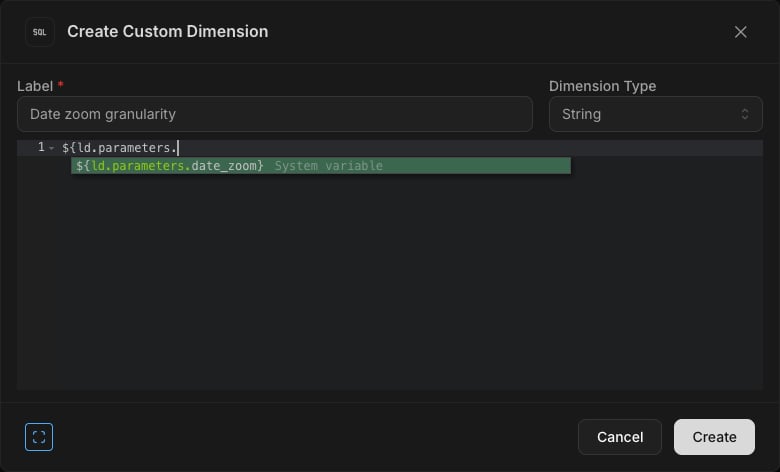
Reserved parameters appear in custom SQL autocomplete alongside your own parameters. They are surfaced as **System variables** in the autocomplete dropdown.
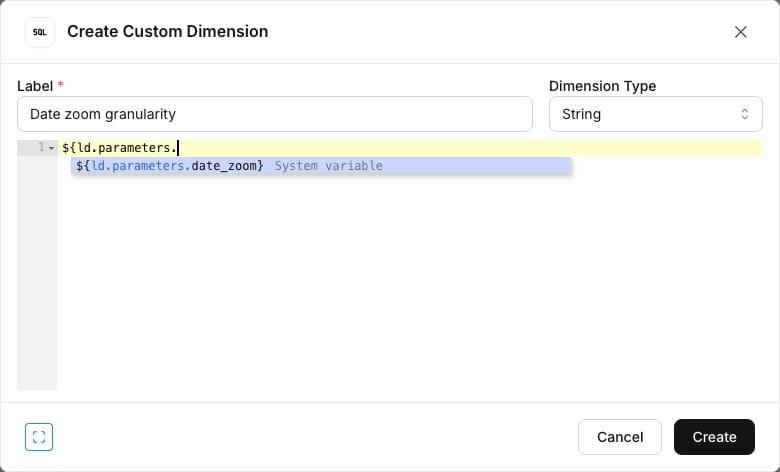
 If you define a user parameter with the same name as a reserved parameter, your user parameter **wins** and shadows the reserved one. Avoid naming user parameters after reserved names unless you intend to override them.
### `date_zoom`
Resolves to the currently selected [date zoom](/guides/date-zoom) granularity, lowercased (for example `day`, `week`, `month`, `quarter`, `year`, or a custom granularity name). When no date zoom is selected, the value is an empty string.
Reference it in custom SQL just like any other parameter:
```sql theme={null}
${ld.parameters.date_zoom}
```
This lets you branch SQL based on the dashboard's current granularity selection, including falling back to default logic when no granularity is selected:
```sql theme={null}
CASE
WHEN ${ld.parameters.date_zoom} = 'week' THEN 'Weekly view'
WHEN ${ld.parameters.date_zoom} = 'month' THEN 'Monthly view'
WHEN ${ld.parameters.date_zoom} = '' THEN 'No date zoom applied'
ELSE 'Other granularity'
END
```
The value tracks the granularity actually used to compile the query, so it stays in sync with what users see in the date zoom dropdown, including [custom granularities](/references/lightdash-config-yml#custom-granularities-configuration).
## Saving parameter values
Parameter values can be saved at both the chart and dashboard levels.
### Saving values in charts
When you create a chart using parameters, you can save the specific parameter values with the chart. This means that when someone views the chart, they'll see the data filtered according to the saved parameter values.
To save parameter values with a chart:
1. Create or edit a chart
2. Set the parameter values as desired
3. Save the chart
The parameter values will be saved with the chart and will be applied whenever the chart is viewed.
### Saving values in dashboards
You can also save parameter values at the dashboard level, which allows you to create dashboards with consistent parameter values across all charts.
To save parameter values in a dashboard:
1. Create or edit a dashboard
2. Add charts to the dashboard
3. Set the parameter values as desired
4. Save the dashboard
The parameter values will be saved with the dashboard and will be applied to all charts on the dashboard that have parameterized fields.
## Best practices for using parameters
Here are some best practices to follow when using parameters:
1. **Use descriptive names**: Choose parameter names that clearly indicate their purpose
2. **Provide default values**: Set default values for parameters to ensure queries work even if users don't set parameter values
3. **Add descriptions**: Include clear descriptions for parameters to help users understand their purpose
4. **Consider using options\_from\_dimension**: For parameters that should match values in your data, use `options_from_dimension` to dynamically populate options
5. **Consider performance**: Be mindful of how parameters affect query performance, especially with large datasets
If you define a user parameter with the same name as a reserved parameter, your user parameter **wins** and shadows the reserved one. Avoid naming user parameters after reserved names unless you intend to override them.
### `date_zoom`
Resolves to the currently selected [date zoom](/guides/date-zoom) granularity, lowercased (for example `day`, `week`, `month`, `quarter`, `year`, or a custom granularity name). When no date zoom is selected, the value is an empty string.
Reference it in custom SQL just like any other parameter:
```sql theme={null}
${ld.parameters.date_zoom}
```
This lets you branch SQL based on the dashboard's current granularity selection, including falling back to default logic when no granularity is selected:
```sql theme={null}
CASE
WHEN ${ld.parameters.date_zoom} = 'week' THEN 'Weekly view'
WHEN ${ld.parameters.date_zoom} = 'month' THEN 'Monthly view'
WHEN ${ld.parameters.date_zoom} = '' THEN 'No date zoom applied'
ELSE 'Other granularity'
END
```
The value tracks the granularity actually used to compile the query, so it stays in sync with what users see in the date zoom dropdown, including [custom granularities](/references/lightdash-config-yml#custom-granularities-configuration).
## Saving parameter values
Parameter values can be saved at both the chart and dashboard levels.
### Saving values in charts
When you create a chart using parameters, you can save the specific parameter values with the chart. This means that when someone views the chart, they'll see the data filtered according to the saved parameter values.
To save parameter values with a chart:
1. Create or edit a chart
2. Set the parameter values as desired
3. Save the chart
The parameter values will be saved with the chart and will be applied whenever the chart is viewed.
### Saving values in dashboards
You can also save parameter values at the dashboard level, which allows you to create dashboards with consistent parameter values across all charts.
To save parameter values in a dashboard:
1. Create or edit a dashboard
2. Add charts to the dashboard
3. Set the parameter values as desired
4. Save the dashboard
The parameter values will be saved with the dashboard and will be applied to all charts on the dashboard that have parameterized fields.
## Best practices for using parameters
Here are some best practices to follow when using parameters:
1. **Use descriptive names**: Choose parameter names that clearly indicate their purpose
2. **Provide default values**: Set default values for parameters to ensure queries work even if users don't set parameter values
3. **Add descriptions**: Include clear descriptions for parameters to help users understand their purpose
4. **Consider using options\_from\_dimension**: For parameters that should match values in your data, use `options_from_dimension` to dynamically populate options
5. **Consider performance**: Be mindful of how parameters affect query performance, especially with large datasets