> ## Documentation Index
> Fetch the complete documentation index at: https://lightdash-mintlify-9d6f9427.mintlify.site/llms.txt
> Use this file to discover all available pages before exploring further.
# Version history
> Roll back to previous versions of charts and dashboards in Lightdash.
## Charts
### Exploring version history
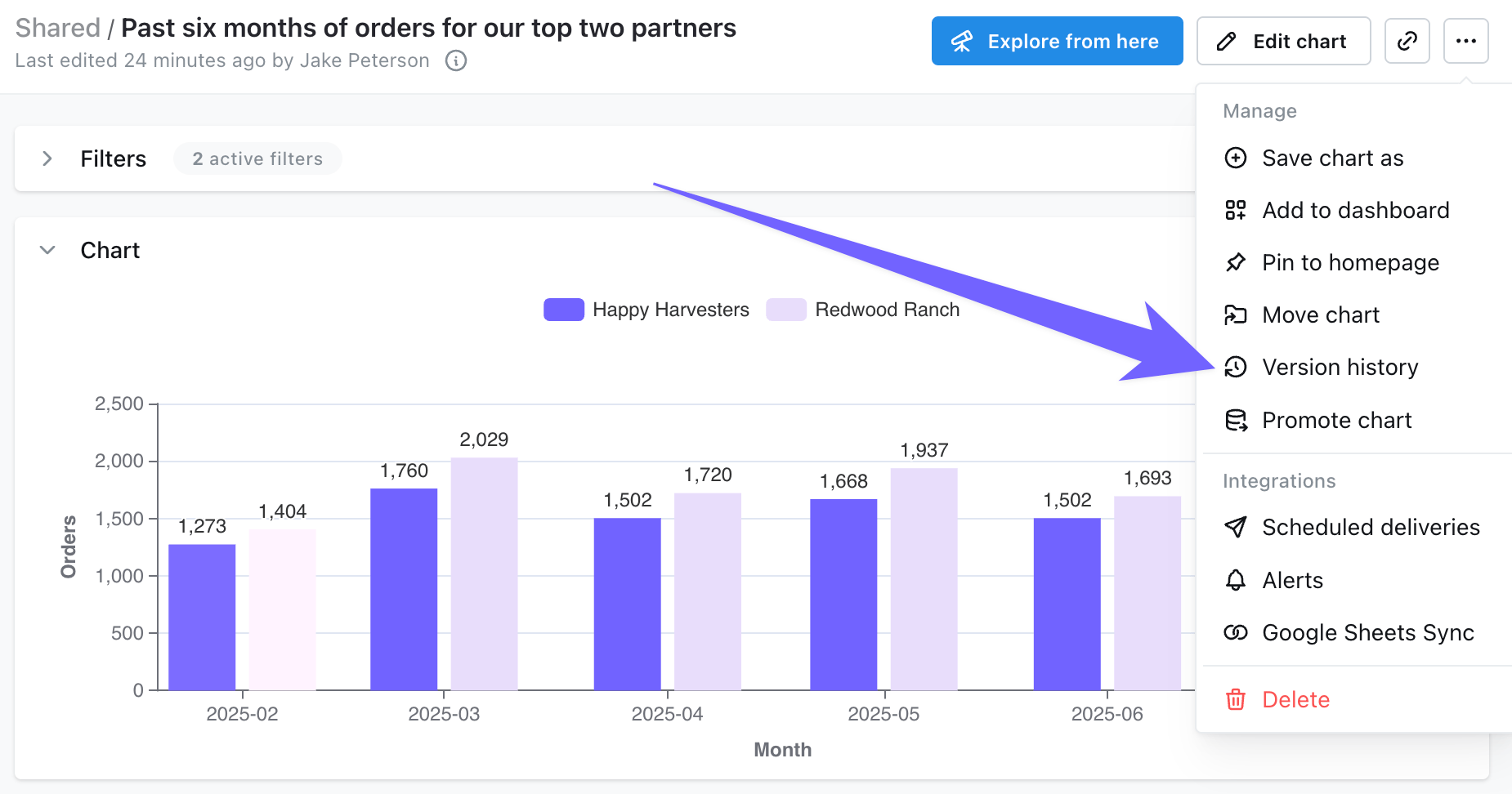
To access version history, click on the `Version History` option under the three dot menu when viewing or editing a chart.
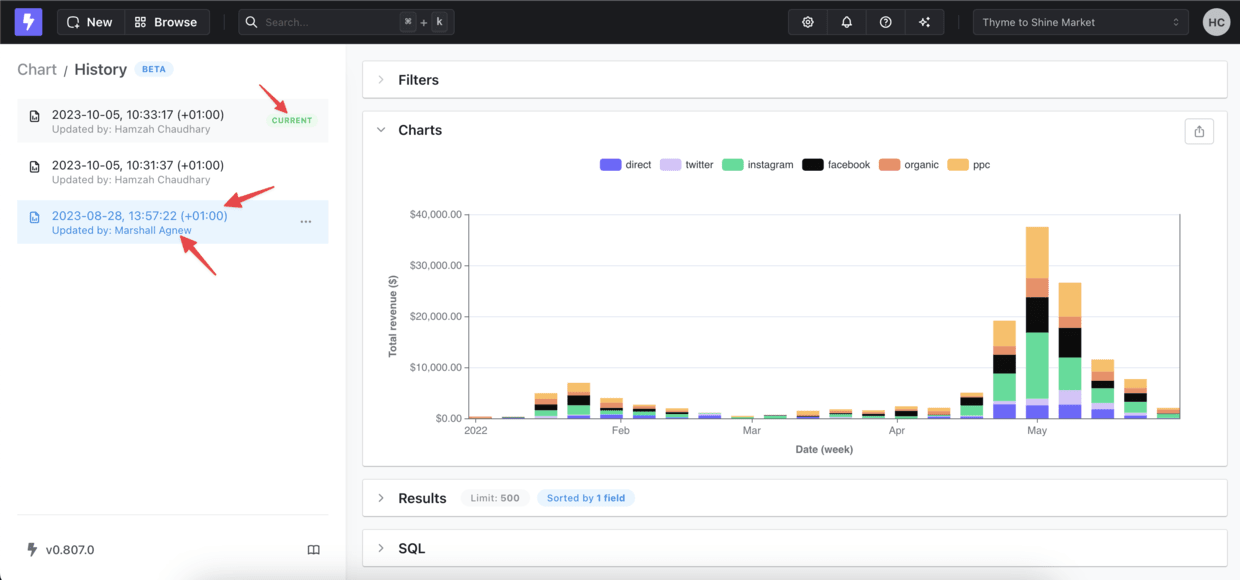
 This takes you to the version history of the chart where you can see the previous versions of the chart including information around who authored the previous versions as well as when they were udpated. You can preview any previous version by clicking on it.
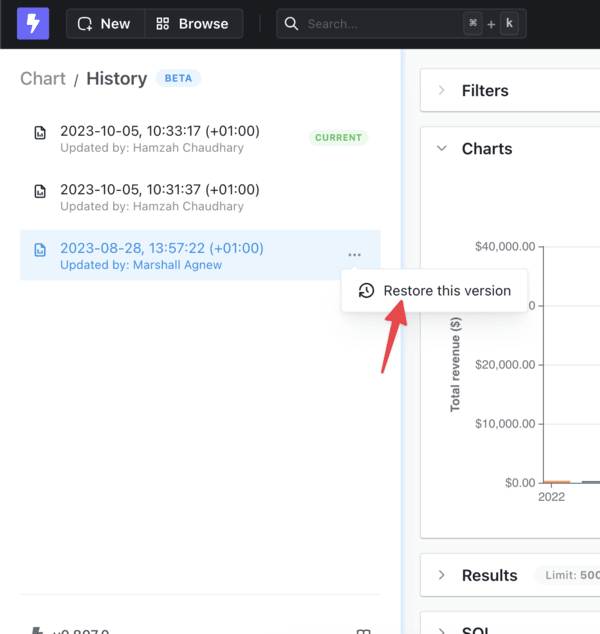
 Once you're happy with the version you want, you can click on the three dot menu next to the version you want to restore the chart to.
Lightdash saves all iterations of your chart, so reverting to a previous version does not delete any existing history.
Once you're happy with the version you want, you can click on the three dot menu next to the version you want to restore the chart to.
Lightdash saves all iterations of your chart, so reverting to a previous version does not delete any existing history.
 ## Dashboard + charts
Rolling back a dashboard to a previous version rolls back every chart saved within that dashboard, not just the layout, filters, and tile positions. Pick any point in your dashboard's history and get the exact view your users saw back then: same chart configs, same fields, same formatting.
Only charts saved **within** the dashboard are affected by a rollback. Charts saved in a space are not changed when you restore a dashboard version.
To roll back a dashboard:
1. Open the dashboard you want to restore.
2. Click the three-dot menu and select **Version History**.
3. Browse previous versions and click one to preview it.
4. When you find the version you want, click the three-dot menu next to it and select **Restore**.
Restoring a dashboard version also restores every chart saved within that version. Any changes made to those charts after the selected version will not appear once you roll back.
### Known limitations
Dashboard version history only tracks changes to the dashboard itself (layout, filters, tile positions). Chart changes are not recorded as separate dashboard versions — when you roll back, chart versions are restored based on the **timestamp** of the dashboard version you select.
This means you can't selectively revert a single change. For example, if you:
1. Create a dashboard.
2. Add a chart (bar chart).
3. Edit the chart to be a line chart.
4. Add a filter to the dashboard.
Rolling back step 4 from the dashboard version history will also revert step 3, because both chart versions are tied to dashboard version timestamps and only steps 1 and 2 exist as dashboard versions.
For more granular control over chart changes, use the chart's own version history instead.
## Recently deleted charts and dashboards
Charts and dashboards deleted in the last 30 days can be restored or permanently deleted from the **Recently deleted** page in project settings.
To access it, go to **Project settings** → **Recently deleted**. For each item you'll see who deleted it and when, along with options to:
* **Restore** the item back to its original space.
* **Delete permanently** to remove it immediately.
Items in **Recently deleted** are automatically purged after 30 days.
**Self-hosted instances:** Soft delete is opt-in. Set `SOFT_DELETE_ENABLED=true` to route deletes through **Recently deleted** instead of removing items immediately, and optionally set `SOFT_DELETE_RETENTION_DAYS` (default `30`) to change the retention window. See [environment variables](/self-host/customize-deployment/environment-variables).
## Missing some versions?
Version History is limited depending on the tier of Lightdash Cloud you're using:
* Cloud Pro: 30 days
* Cloud Enterprise: 60 days
Speak to the team if you're interested in moving tier to get access to more history.
## Dashboard + charts
Rolling back a dashboard to a previous version rolls back every chart saved within that dashboard, not just the layout, filters, and tile positions. Pick any point in your dashboard's history and get the exact view your users saw back then: same chart configs, same fields, same formatting.
Only charts saved **within** the dashboard are affected by a rollback. Charts saved in a space are not changed when you restore a dashboard version.
To roll back a dashboard:
1. Open the dashboard you want to restore.
2. Click the three-dot menu and select **Version History**.
3. Browse previous versions and click one to preview it.
4. When you find the version you want, click the three-dot menu next to it and select **Restore**.
Restoring a dashboard version also restores every chart saved within that version. Any changes made to those charts after the selected version will not appear once you roll back.
### Known limitations
Dashboard version history only tracks changes to the dashboard itself (layout, filters, tile positions). Chart changes are not recorded as separate dashboard versions — when you roll back, chart versions are restored based on the **timestamp** of the dashboard version you select.
This means you can't selectively revert a single change. For example, if you:
1. Create a dashboard.
2. Add a chart (bar chart).
3. Edit the chart to be a line chart.
4. Add a filter to the dashboard.
Rolling back step 4 from the dashboard version history will also revert step 3, because both chart versions are tied to dashboard version timestamps and only steps 1 and 2 exist as dashboard versions.
For more granular control over chart changes, use the chart's own version history instead.
## Recently deleted charts and dashboards
Charts and dashboards deleted in the last 30 days can be restored or permanently deleted from the **Recently deleted** page in project settings.
To access it, go to **Project settings** → **Recently deleted**. For each item you'll see who deleted it and when, along with options to:
* **Restore** the item back to its original space.
* **Delete permanently** to remove it immediately.
Items in **Recently deleted** are automatically purged after 30 days.
**Self-hosted instances:** Soft delete is opt-in. Set `SOFT_DELETE_ENABLED=true` to route deletes through **Recently deleted** instead of removing items immediately, and optionally set `SOFT_DELETE_RETENTION_DAYS` (default `30`) to change the retention window. See [environment variables](/self-host/customize-deployment/environment-variables).
## Missing some versions?
Version History is limited depending on the tier of Lightdash Cloud you're using:
* Cloud Pro: 30 days
* Cloud Enterprise: 60 days
Speak to the team if you're interested in moving tier to get access to more history.