> ## Documentation Index
> Fetch the complete documentation index at: https://lightdash-mintlify-9d6f9427.mintlify.site/llms.txt
> Use this file to discover all available pages before exploring further.
# Spaces
> Once you've used Lightdash for a while, your team will probably end up with a lot of saved charts and dashboards. Spaces let you organize your saved charts and dashboards.
Spaces are kind of like folders. All saved charts and dashboards exist in a Space and can only be in one Space at a time.
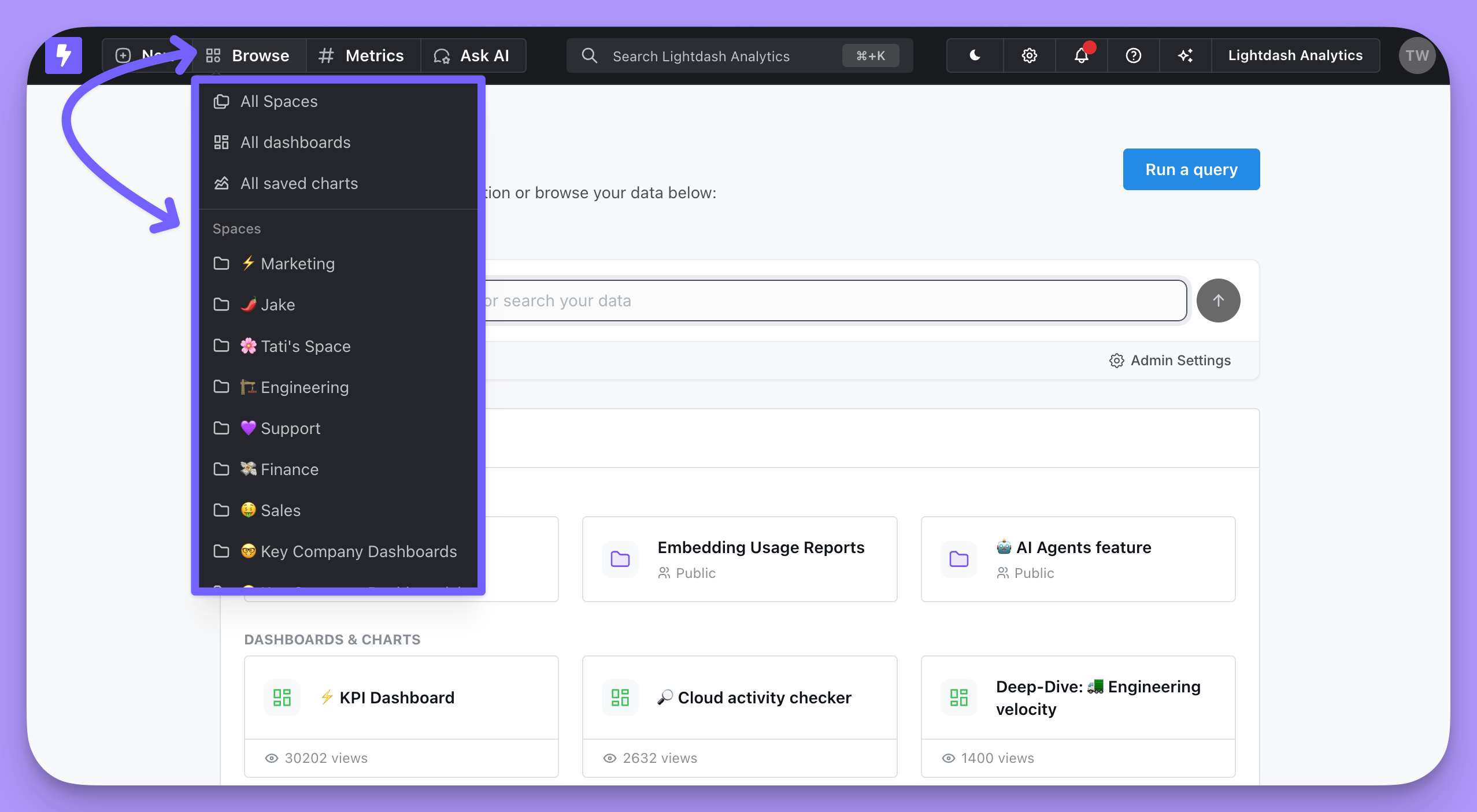
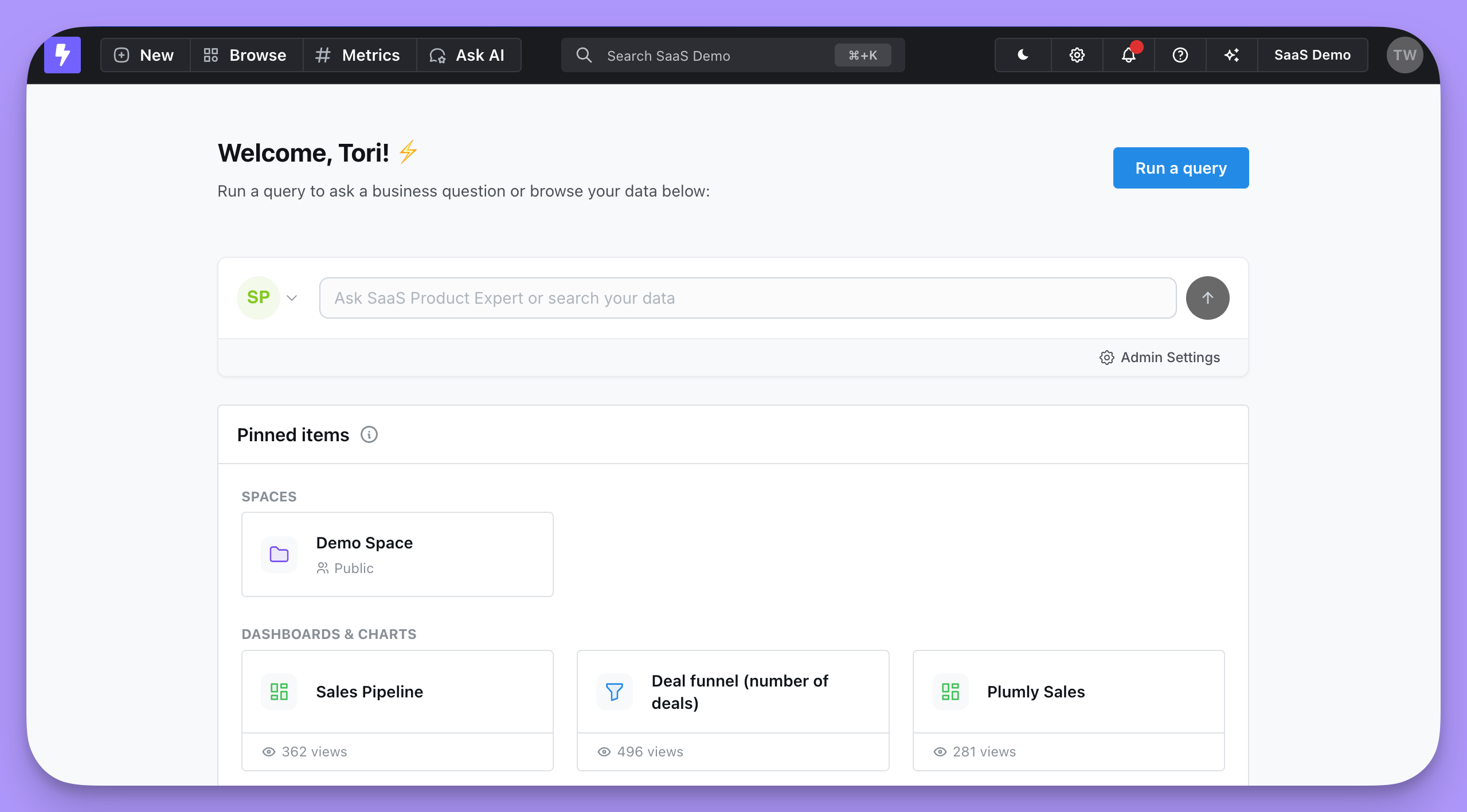 To access Spaces, you can either select a Space from the drop-down list in `Browse` or you can click on the Lightdash icon and select your Space from the homepage.
 ## Moving items between Spaces
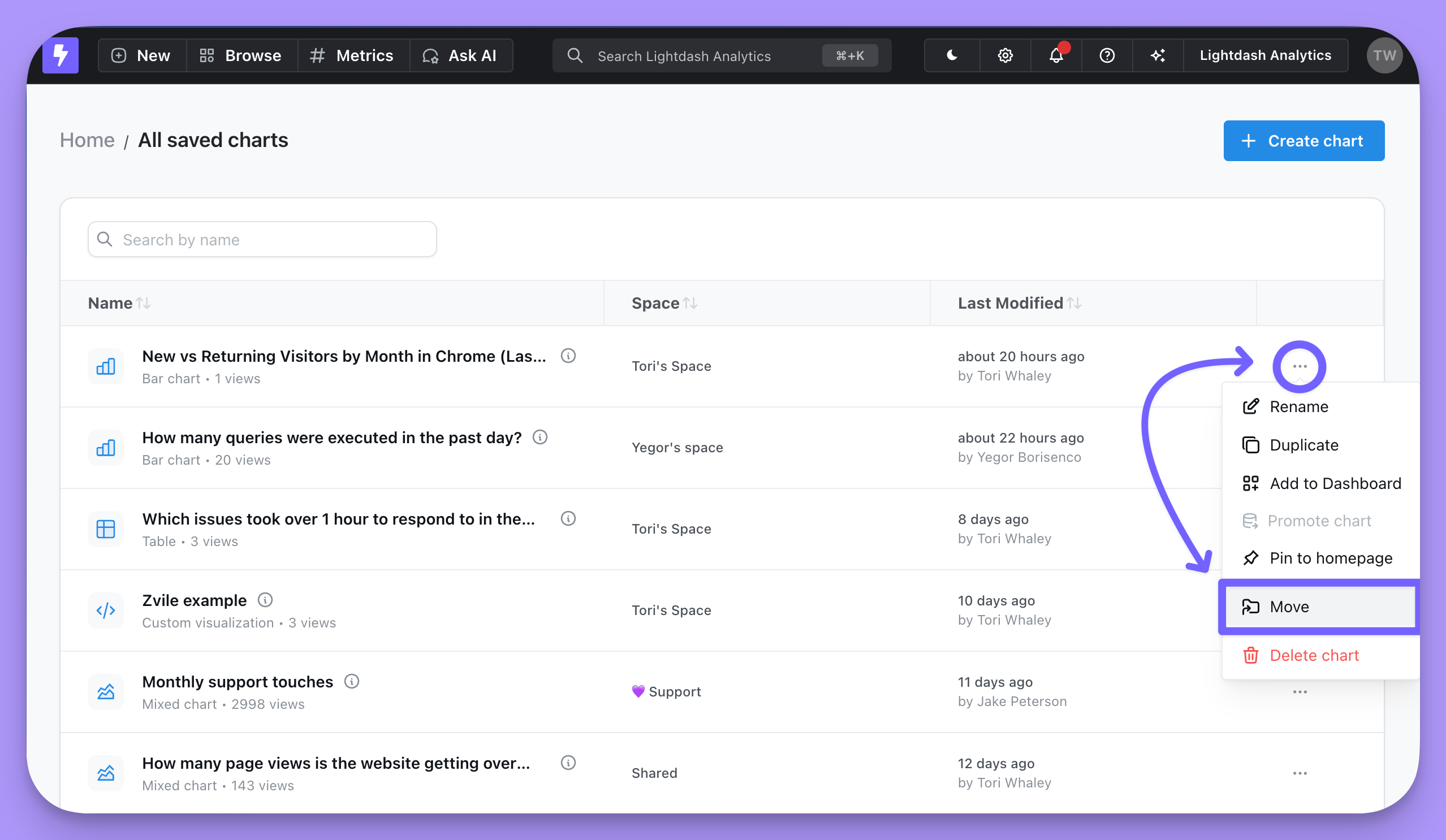
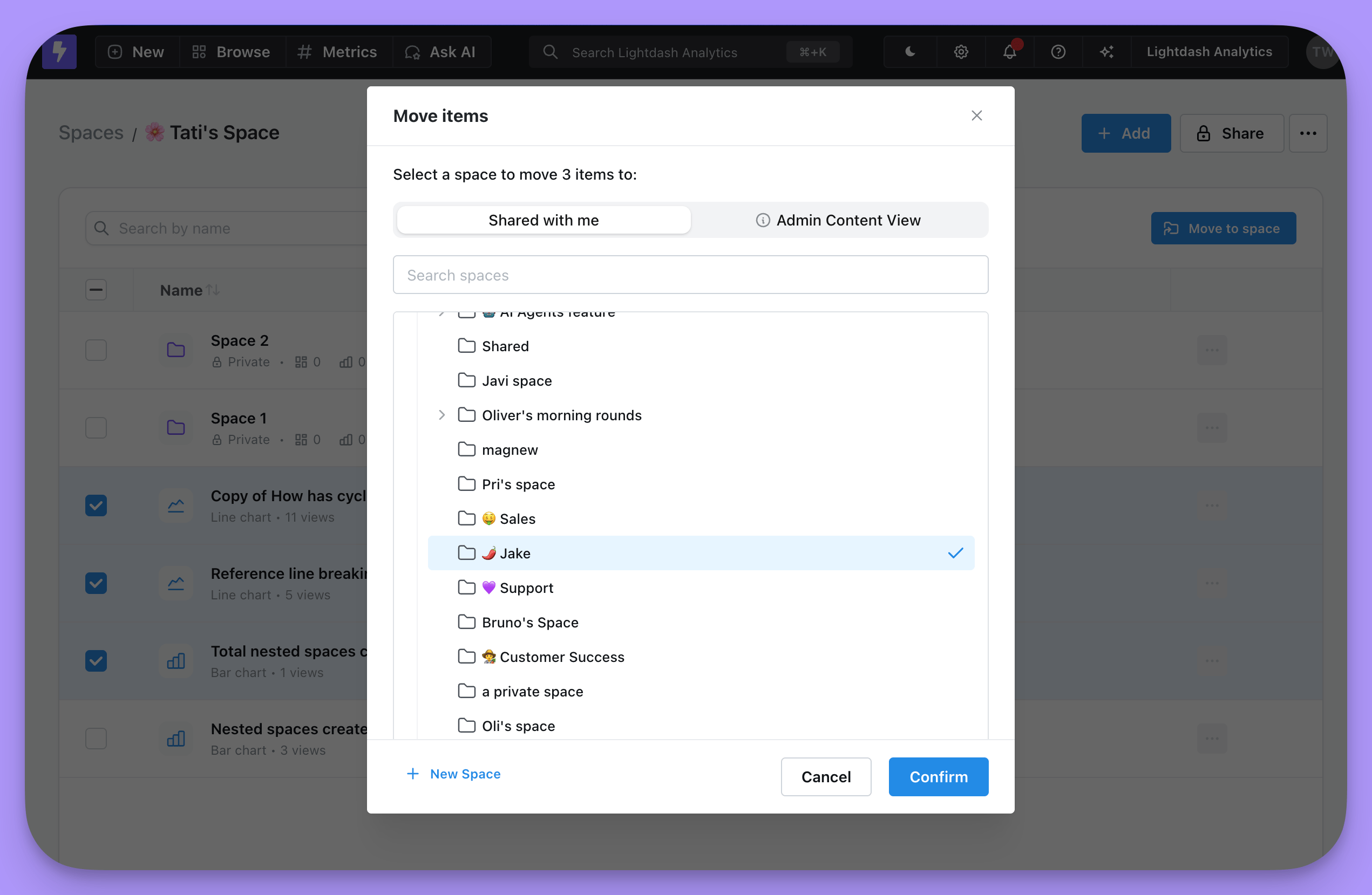
To move a saved chart, dashboard or space between Spaces, you can click on the three dot menu (`...`) to the right of the item and pick the `Move` action. Or select items using checkboxes on the left and click `Move to Space`.
## Moving items between Spaces
To move a saved chart, dashboard or space between Spaces, you can click on the three dot menu (`...`) to the right of the item and pick the `Move` action. Or select items using checkboxes on the left and click `Move to Space`.
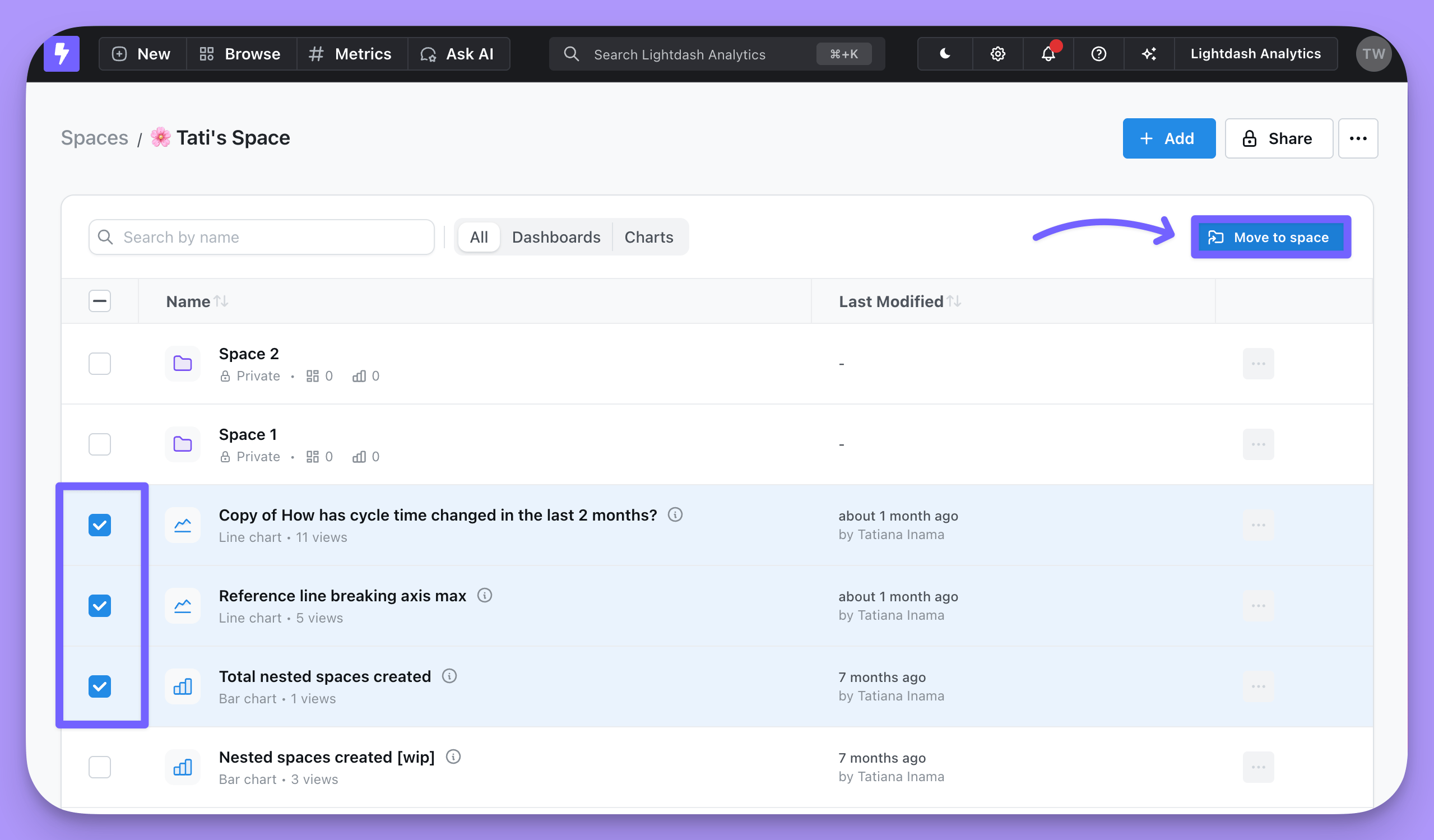
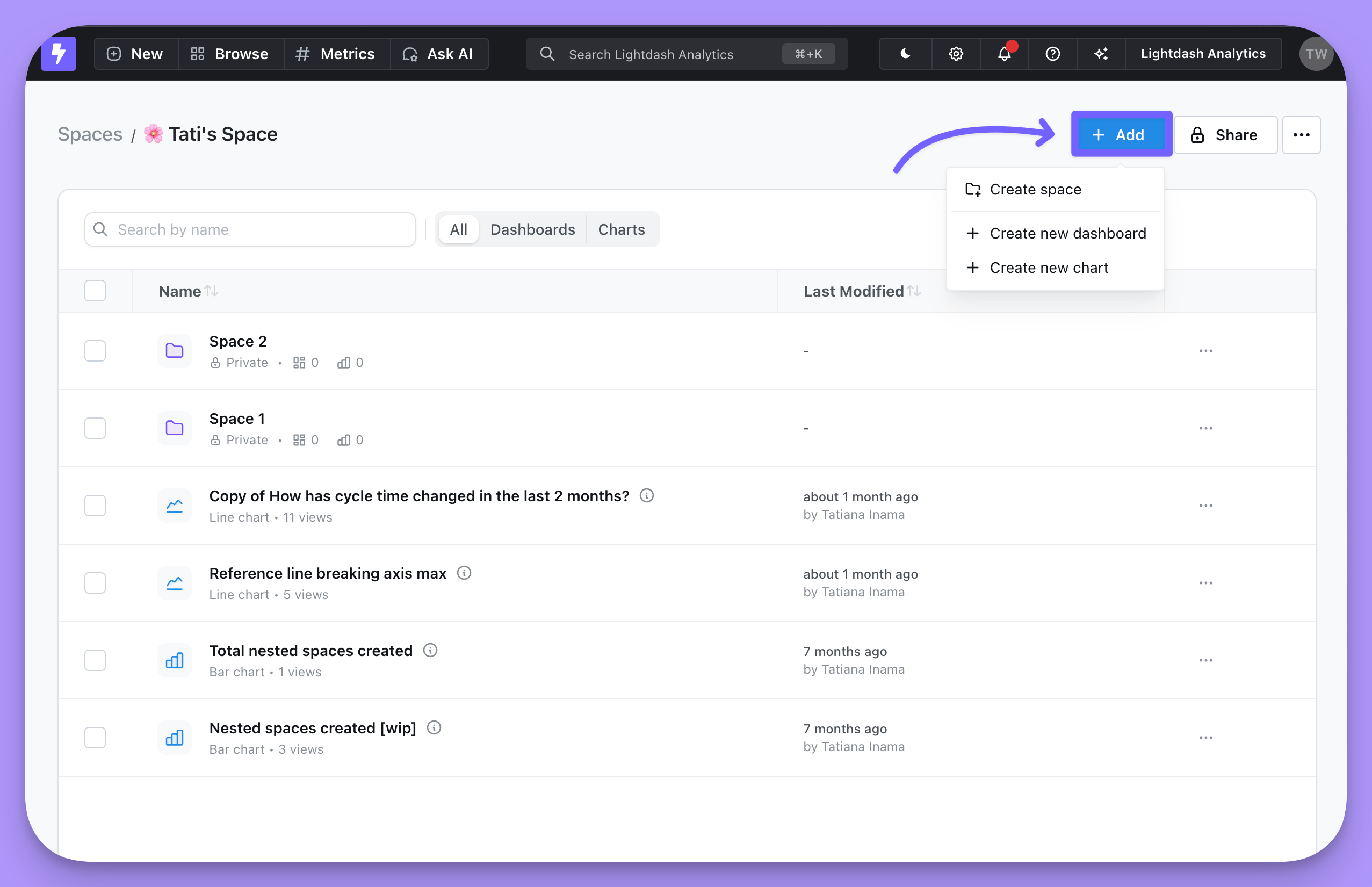
 You can also add items to a Space from within the Space. Just click on the `Add` button on the space page.
 ## Updating and deleting Spaces
You can rename or delete your Space from All Spaces view or on the homescreen by clicking on the three-dot menu (`...`) for the Space.
## Updating and deleting Spaces
You can rename or delete your Space from All Spaces view or on the homescreen by clicking on the three-dot menu (`...`) for the Space.
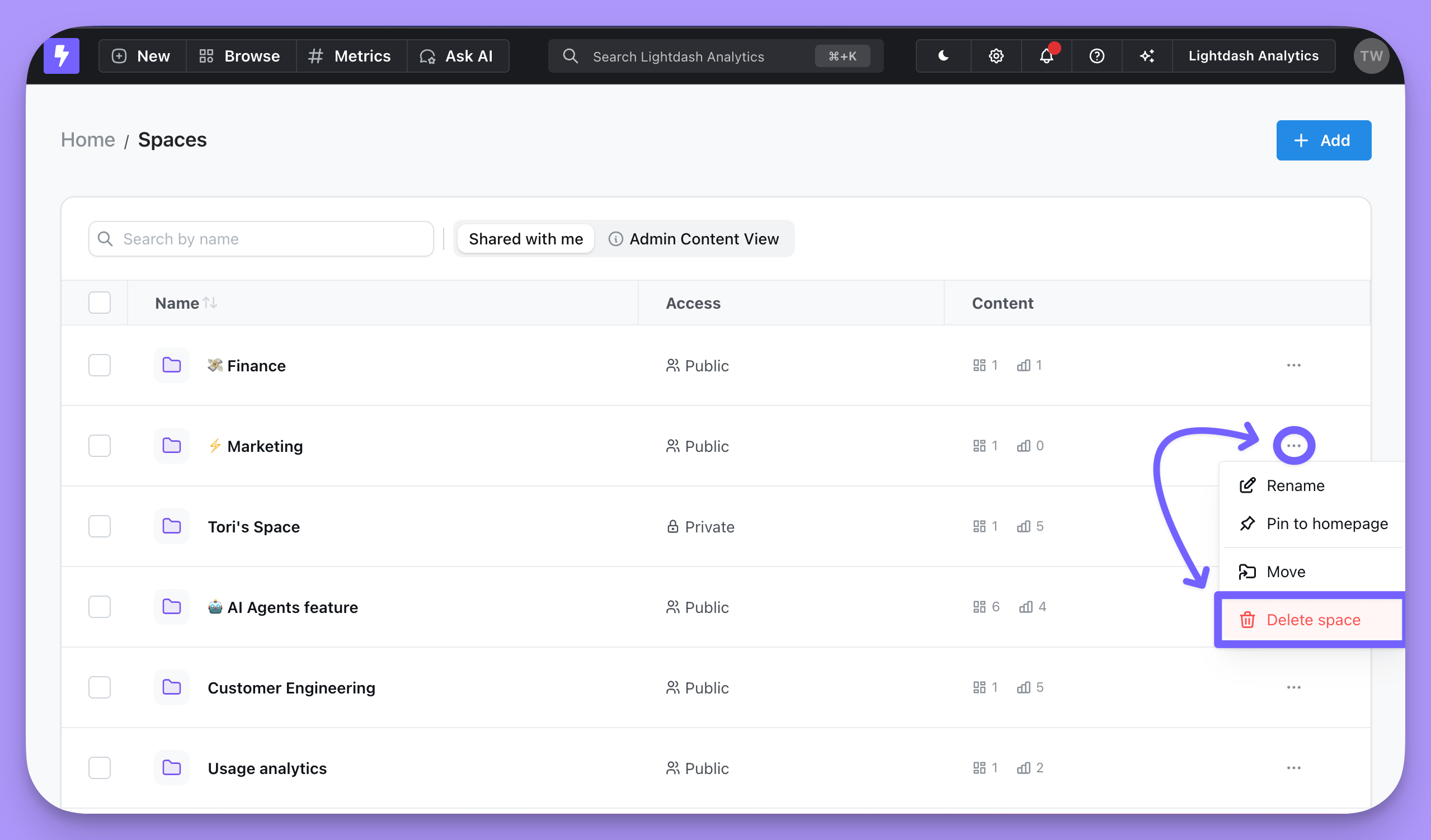 Deleting a Space will delete all of the content in that Space.
## Managing access to a Space
By default, when you create a Space, it has Inherited Access—inheriting permissions from the project (for root-level spaces) or from the parent space (for nested spaces). You can change a space to Restricted Access to limit it to only invited users and admins.
Deleting a Space will delete all of the content in that Space.
## Managing access to a Space
By default, when you create a Space, it has Inherited Access—inheriting permissions from the project (for root-level spaces) or from the parent space (for nested spaces). You can change a space to Restricted Access to limit it to only invited users and admins.
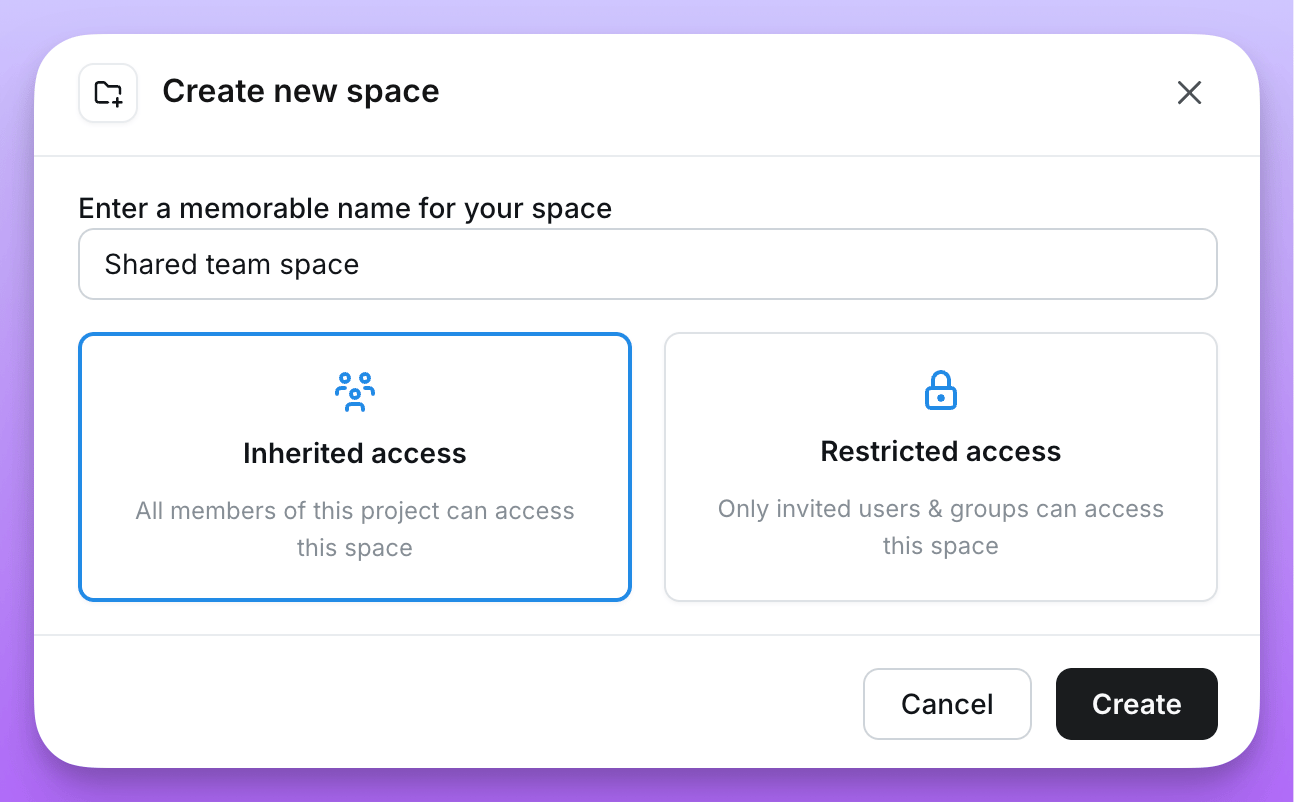 To edit access to a Space, navigate into the Space, then click the three-dot menu (`...`) and select `Share`. From there, you can choose between `Inherited Access` and `Restricted Access`.
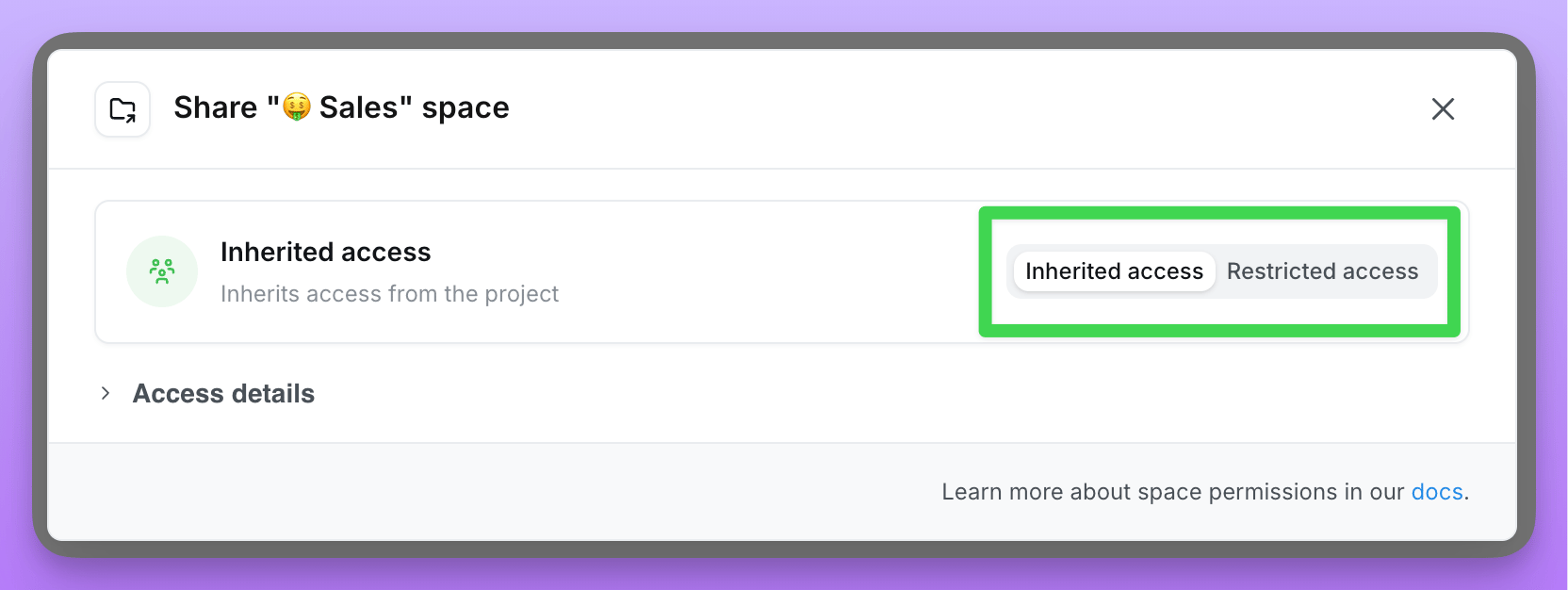
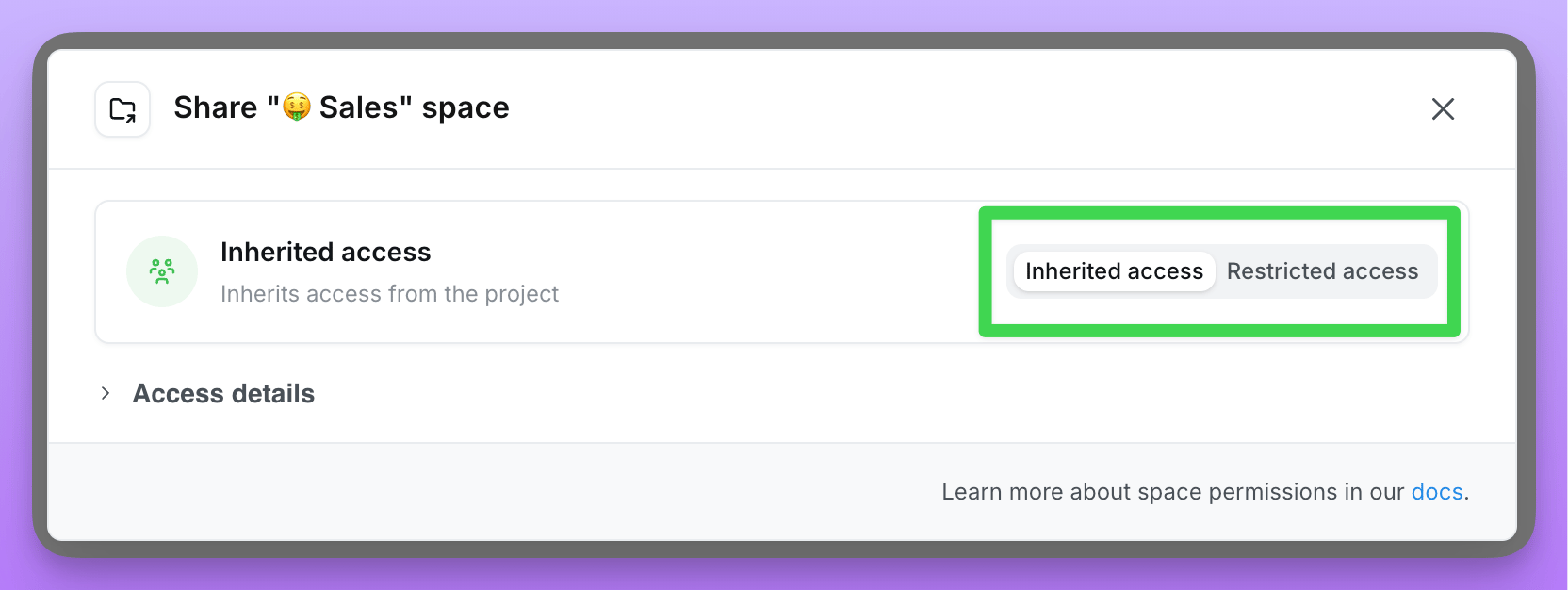 By default, in spaces with Inherited Access, a user's space permissions are inherited from their project permissions (for root-level spaces) or parent space (for nested spaces). For example, if I'm a project viewer, I will get `Can View` access to a Space.
There are three space roles: `Full Access`, `Can Edit`, `Can View`
For more details about actions you can take in a Space based on your role, [check out this table](/references/workspace/roles#space-roles).
### Restricted Access spaces
**Only admins and members that are invited to a Space with Restricted Access have access to it.**
For example, here I have a Space with Restricted Access. Only admins and the invited members have access to this Space. Katie, Filipe and Marshall have inherited `Full Access` because they are organization admins. Priyanka was invited to the space, so she has `Can View` access to the space. No one else in Lightdash can see or interact with the content in this Space unless they're invited or become an admin.
Only users with `Full Access` permissions to a Restricted Access space can invite other users to that Space.
**Nested spaces inherit access from Restricted Access spaces by default.** When you create a space inside a Restricted Access space, the nested space automatically uses Inherited Access, meaning it inherits the same restricted permissions from its parent. This makes it easy to organize content within a restricted area while maintaining consistent access control.
### Inherited Access spaces
**Everyone who has access to your project (or parent space) has access to a space with Inherited Access.**
For example, here I have a Space with Inherited Access. Everyone who has access to my Project, "Lightdash analytics", will get access to the content in my space.
By default, in spaces with Inherited Access, a user's space permissions are inherited from their project permissions (for root-level spaces) or parent space (for nested spaces). For example, if I'm a project viewer, I will get `Can View` access to a Space.
There are three space roles: `Full Access`, `Can Edit`, `Can View`
For more details about actions you can take in a Space based on your role, [check out this table](/references/workspace/roles#space-roles).
### Restricted Access spaces
**Only admins and members that are invited to a Space with Restricted Access have access to it.**
For example, here I have a Space with Restricted Access. Only admins and the invited members have access to this Space. Katie, Filipe and Marshall have inherited `Full Access` because they are organization admins. Priyanka was invited to the space, so she has `Can View` access to the space. No one else in Lightdash can see or interact with the content in this Space unless they're invited or become an admin.
Only users with `Full Access` permissions to a Restricted Access space can invite other users to that Space.
**Nested spaces inherit access from Restricted Access spaces by default.** When you create a space inside a Restricted Access space, the nested space automatically uses Inherited Access, meaning it inherits the same restricted permissions from its parent. This makes it easy to organize content within a restricted area while maintaining consistent access control.
### Inherited Access spaces
**Everyone who has access to your project (or parent space) has access to a space with Inherited Access.**
For example, here I have a Space with Inherited Access. Everyone who has access to my Project, "Lightdash analytics", will get access to the content in my space.
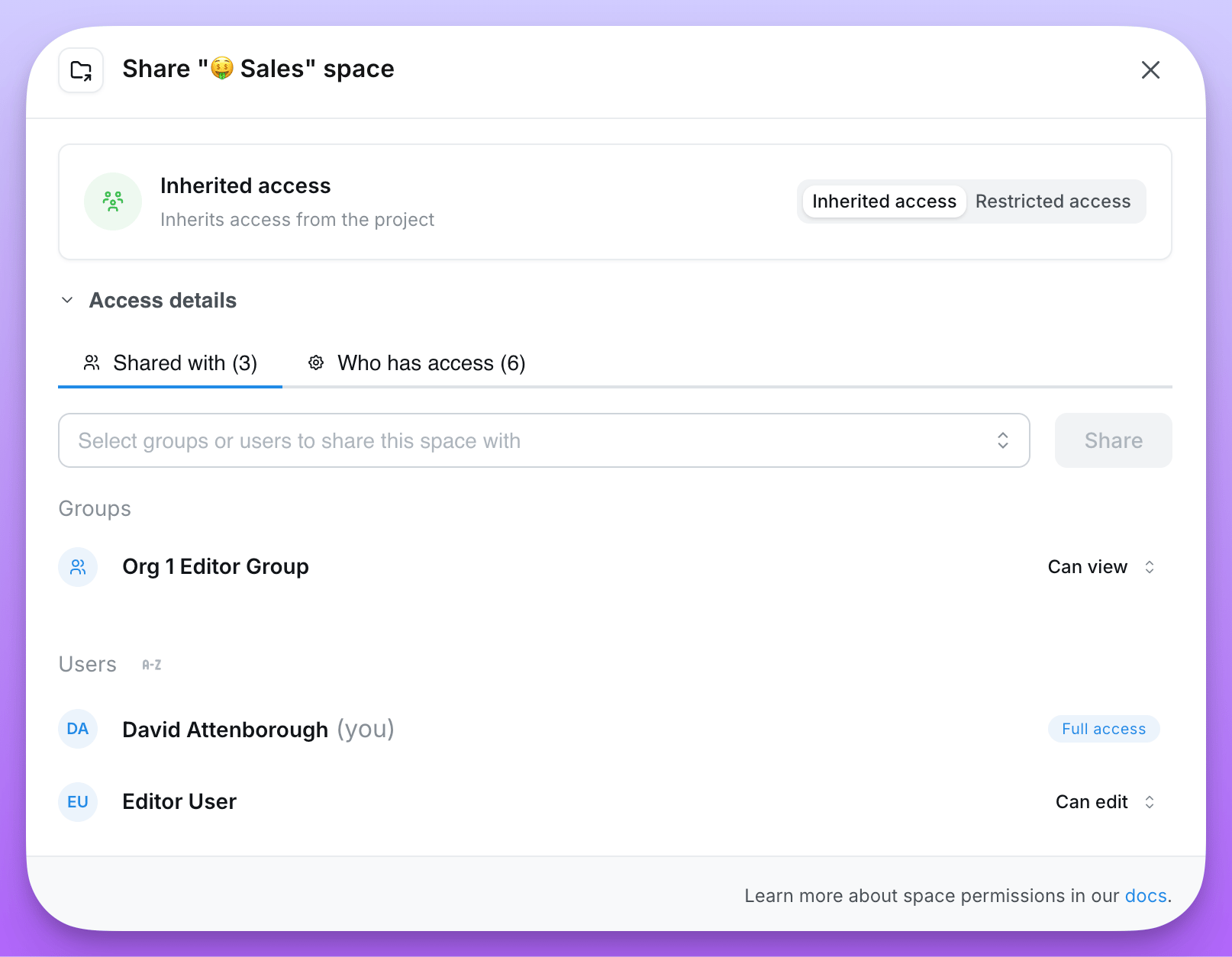
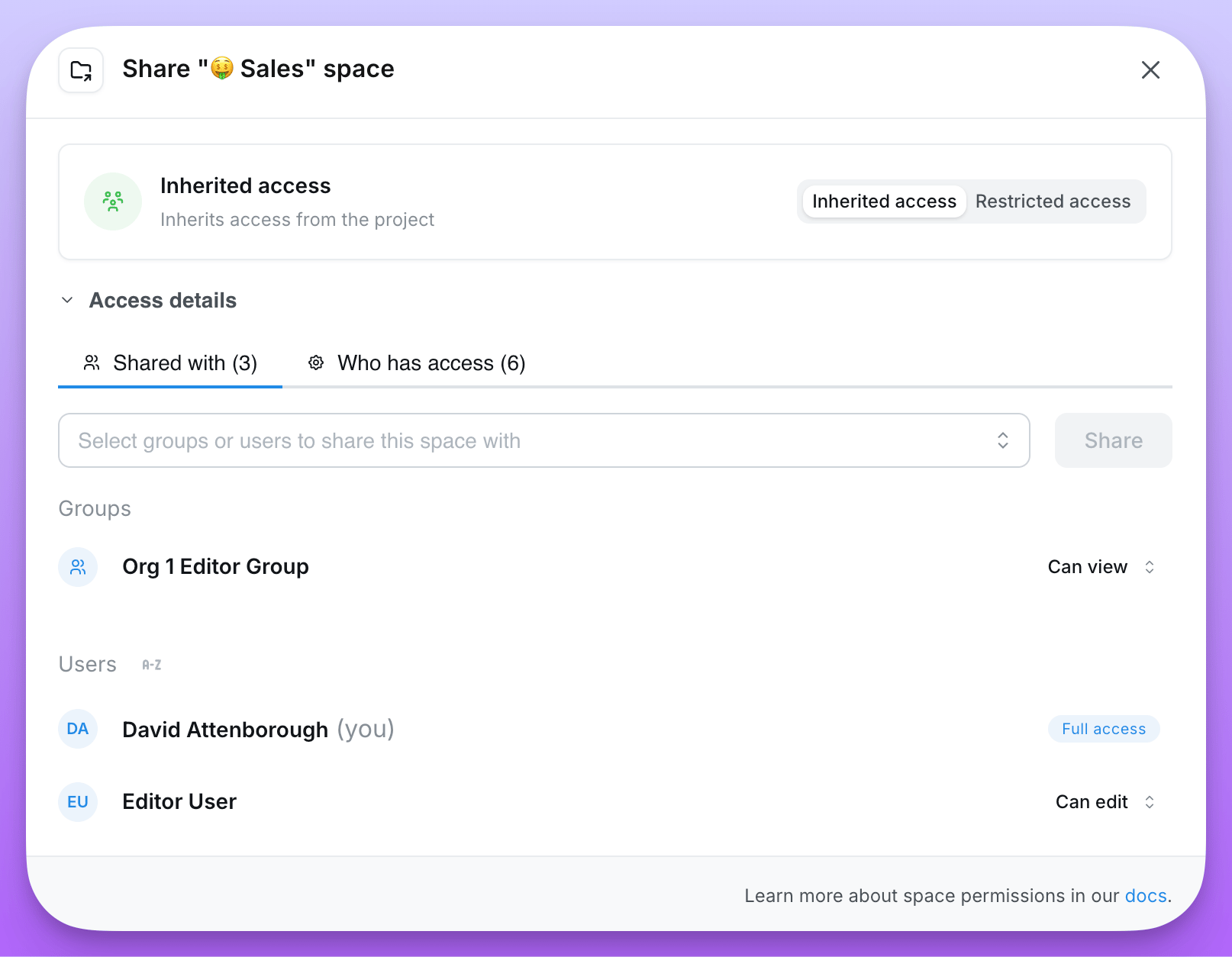 **By default, you inherit your space permissions in an Inherited Access space from your project permissions (for root-level spaces) or parent space permissions (for nested spaces).**
So, if someone is an `editor` in my project, they will have `Can Edit` permissions in my Space. If someone is a `viewer` in my project, they will have `Can View` permissions in my Space. For more details about actions you can take in a Space based on your role, [check out this table](/references/workspace/roles#space-roles).
**Users with Full Access to the space can change a user's space permissions.**
In Inherited Access spaces (just like in Restricted Access spaces), users who have `Full Access` to the space can change other users' space permissions (except admins). Users cannot be removed from Inherited Access spaces. To make a user have `no access` to a space, you must change the space from Inherited Access to Restricted Access.
## Nested space permissions
Spaces can be nested inside other spaces to create a hierarchy. Nested spaces have flexible permission options that allow you to either inherit permissions from their parent or define custom access.
### Permission inheritance options
When creating or editing a space, you can choose between two access modes:
* **Inherited Access**: The space inherits permissions from its parent. For nested spaces, this means inheriting from the parent space. For root-level spaces, this means inheriting from the project. This is the more open option—users with access to the parent automatically have the same access to the space.
* **Restricted Access**: The space defines its own permissions, which its children inherit. Only users and groups explicitly invited to this space (plus admins) can access it. This is the more restricted option.
### How permission inheritance works
When a nested space uses Inherited Access:
1. **Inheritance chain**: Permissions flow down through the space hierarchy. If Space A contains Space B, and Space B contains Space C, then Space C can inherit permissions all the way from Space A (if both B and C use Inherited Access).
2. **Breaking inheritance**: When you switch a space from Inherited Access to Restricted Access, the current inherited permissions are copied as direct access entries. This ensures users don't suddenly lose access when you restrict permissions.
3. **Access sources**: In the share modal, you can see where each user's access comes from:
* **Direct access**: Explicitly granted to this space
* **Parent space**: Inherited from a parent space
* **Project**: Inherited from project-level permissions
* **Organization**: Inherited from organization-level permissions
### Managing nested space permissions
To change a nested space's permission mode:
1. Navigate into the space
2. Click the three-dot menu (`...`) and select `Share`
3. Toggle between Inherited Access and Restricted Access
4. If switching to Restricted Access, you can then add or remove specific users and groups
When you switch a space to Restricted Access, you automatically receive Full Access to prevent accidentally locking yourself out.
### Best practices for nested spaces
* **Use groups over individual users**: When sharing spaces, prefer adding groups rather than individual users. This makes permission management easier as your team grows.
* **Plan your hierarchy**: Consider how permissions should flow before creating deeply nested structures.
* **Use Inherited Access when possible**: Inheriting permissions simplifies management and ensures consistent access across related content.
**By default, you inherit your space permissions in an Inherited Access space from your project permissions (for root-level spaces) or parent space permissions (for nested spaces).**
So, if someone is an `editor` in my project, they will have `Can Edit` permissions in my Space. If someone is a `viewer` in my project, they will have `Can View` permissions in my Space. For more details about actions you can take in a Space based on your role, [check out this table](/references/workspace/roles#space-roles).
**Users with Full Access to the space can change a user's space permissions.**
In Inherited Access spaces (just like in Restricted Access spaces), users who have `Full Access` to the space can change other users' space permissions (except admins). Users cannot be removed from Inherited Access spaces. To make a user have `no access` to a space, you must change the space from Inherited Access to Restricted Access.
## Nested space permissions
Spaces can be nested inside other spaces to create a hierarchy. Nested spaces have flexible permission options that allow you to either inherit permissions from their parent or define custom access.
### Permission inheritance options
When creating or editing a space, you can choose between two access modes:
* **Inherited Access**: The space inherits permissions from its parent. For nested spaces, this means inheriting from the parent space. For root-level spaces, this means inheriting from the project. This is the more open option—users with access to the parent automatically have the same access to the space.
* **Restricted Access**: The space defines its own permissions, which its children inherit. Only users and groups explicitly invited to this space (plus admins) can access it. This is the more restricted option.
### How permission inheritance works
When a nested space uses Inherited Access:
1. **Inheritance chain**: Permissions flow down through the space hierarchy. If Space A contains Space B, and Space B contains Space C, then Space C can inherit permissions all the way from Space A (if both B and C use Inherited Access).
2. **Breaking inheritance**: When you switch a space from Inherited Access to Restricted Access, the current inherited permissions are copied as direct access entries. This ensures users don't suddenly lose access when you restrict permissions.
3. **Access sources**: In the share modal, you can see where each user's access comes from:
* **Direct access**: Explicitly granted to this space
* **Parent space**: Inherited from a parent space
* **Project**: Inherited from project-level permissions
* **Organization**: Inherited from organization-level permissions
### Managing nested space permissions
To change a nested space's permission mode:
1. Navigate into the space
2. Click the three-dot menu (`...`) and select `Share`
3. Toggle between Inherited Access and Restricted Access
4. If switching to Restricted Access, you can then add or remove specific users and groups
When you switch a space to Restricted Access, you automatically receive Full Access to prevent accidentally locking yourself out.
### Best practices for nested spaces
* **Use groups over individual users**: When sharing spaces, prefer adding groups rather than individual users. This makes permission management easier as your team grows.
* **Plan your hierarchy**: Consider how permissions should flow before creating deeply nested structures.
* **Use Inherited Access when possible**: Inheriting permissions simplifies management and ensures consistent access across related content.